
English
IntelliJ IDEA Code Folding Default Expanded Configuration: Say Goodbye to the Hassle of Manual Expansion

Pain point: method bodies being collapsed by default is annoying.
In daily development, have you ever encountered a scenario like this:
Open a Go or Java file, and all method bodies are collapsed into a single line:
go
func (c *context) RequestKeyValue(key string) string {
    // The method body is collapsed, so the internal logic is completely invisible...
}
Every time you need to manually click to expand, or press Ctrl + + Expand the method body. If there are many methods in the file, this repeated operation will seriously affect reading efficiency and the development experience.
This article will thoroughly solve this problem, allowing all code to remain expanded when you open the file.
Solution: Three-step global configuration
Operating steps
Step 1: Open the settings panel
Windows/Linux:
File→SettingsmacOS:
IntelliJ IDEAI’m ready to translate, but no text was provided. Please send the text you’d like translated into English.Preferences
Step 2: Navigate to the Code Folding settings
Enter Editor→General→ →Code Folding
Step 3: Uncheck Method bodies
at Fold by default area, find Method bodies Option, uncheck:
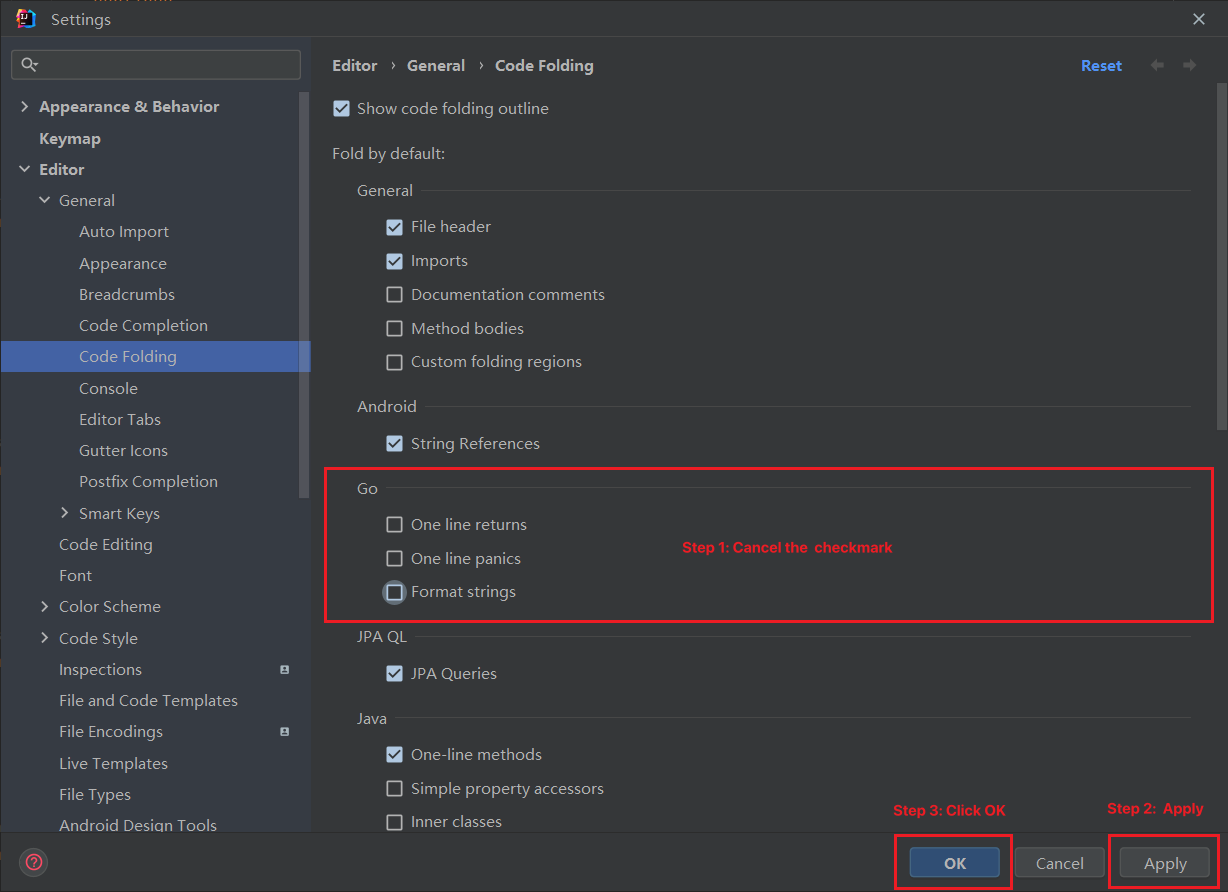
If you are using a JetBrains IDE such as GoLand, PyCharm, or WebStorm, the procedure is exactly the same.
Click Apply → OK, the configuration takes effect immediately. From now on, all method bodies will be expanded by default when opening files.
Optional configuration: Other folding options
At Fold by default In the region, you can also control the default folding behavior of other code blocks:
| Option | Description | Suggestion |
|---|---|---|
Imports | Import statement folding | It is recommended to keep it folded to save space. |
One-line methods | Single-line method folding | It is recommended to keep it folded. |
Documentation comments | Documentation comment folding | It depends on personal preference. |
Custom folding regions | Custom area collapse | It is recommended to keep it folded. |
Method bodies | Method body folding | Uncheck |
Keyboard Shortcut Quick Reference
Even if default expansion is configured, temporary collapsing operations may still be needed when reading long files:
| Operation | Windows / Linux | macOS |
|---|---|---|
| Expand current method | Ctrl + + | Cmd + + |
| Collapse current method | Ctrl + - | Cmd + - |
| Expand all code | Ctrl + Shift + + | Cmd + Shift + + |
| Collapse all code | Ctrl + Shift + - | Cmd + Shift + - |
+ and - Refers to the plus and minus keys on the keyboard (the non-numeric keypad keys can also be used).
Advanced Tips: Custom Folding Regions
If you need to individually control the folding behavior of specific code blocks (such as large sections of log configuration, test data, etc.), you can use custom folding comments:
go
// region initialization configuration module
config := loadConfig()
initLogger()
connectDatabase()
setGlobalTimeout(30 * time.Second)
// endregion

// region test data preparation
testUsers := []User{
    {Name: "Alice", Age: 25},
    {Name: "Bob", Age: 30},
    {Name: "Charlie", Age: 35},
}
// endregion
然后在 Code Folding 设置中,找到 Custom folding regions, decide whether to collapse these areas by default.
Applicable scenarios
This configuration applies to all JetBrains IDEs:
IntelliJ IDEA (Java / Kotlin / Scala)
GoLand (Go)
PyCharm (Python)
WebStorm(JavaScript / TypeScript)
PhpStorm (PHP)
Rider(C#)
CLion (C / C++)
Summary
With three simple configuration steps:
Enter
SettingsTranslate the following text into en. IMPORTANT: Translate ALL Chinese characters to English. If the text contains Chinese, you MUST translate it. If the text is already in en, output it EXACTLY as it is. Output ONLY the translated text, no quotes, no explanations.Editor→General→Code FoldingUncheck
Method bodiesClick
ApplyandOK
This completely solves the pain point of method bodies being collapsed by default in IDEA. Combined with shortcuts and custom folding regions, you can fully control code folding behavior, taking code reading and development efficiency to the next level.