
English
How to remove the gray selection highlight box in iTerm2? (Solution guide for the overlay that appears when clicking a command)

1. Background
Recently, while using the macOS terminal, I encountered a very annoying issue. After investigation, the specific version in use is iTerm2 v3.7.7.
As for which version secretly added this [block highlight] feature, we will not focus too much on that and go straight to the solution!
II. Specific manifestations
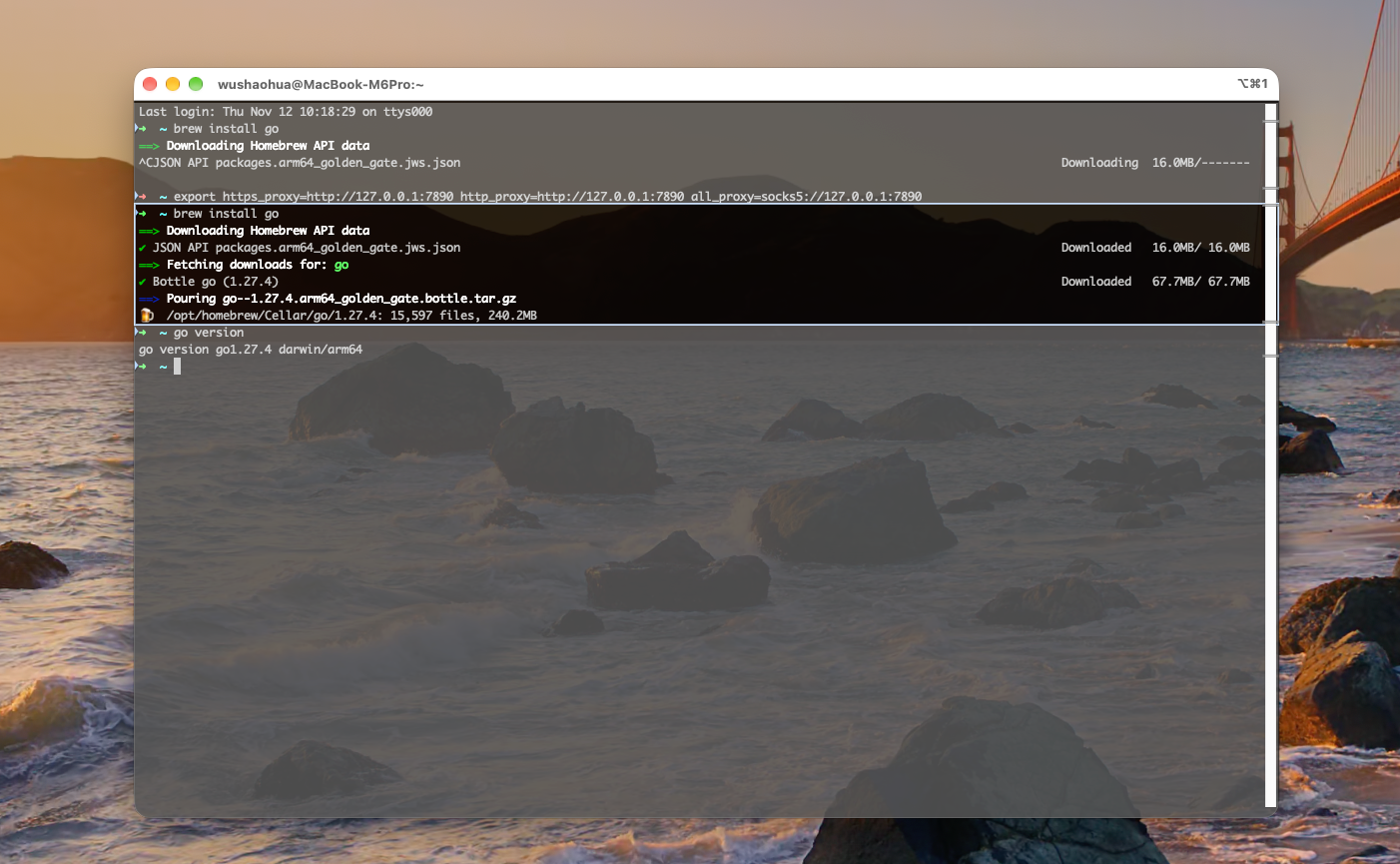
When you click a certain history command in the terminal, or double-click a certain area, a huge gray semi-transparent overlay box (block selection box) appears, which not only blocks the view but also easily leads to accidental touches and accidental copying.
III. Solution (UI Configuration Modification)
This feature was actually introduced in the new version of iTerm2 Shell Integration (Shell Integration) This feature was originally intended to make it easy for users to quickly select an entire command or filter search results, but because the visual feedback was too strong, it caused problems for some users.
Simply disable the following two options in settings to resolve this:
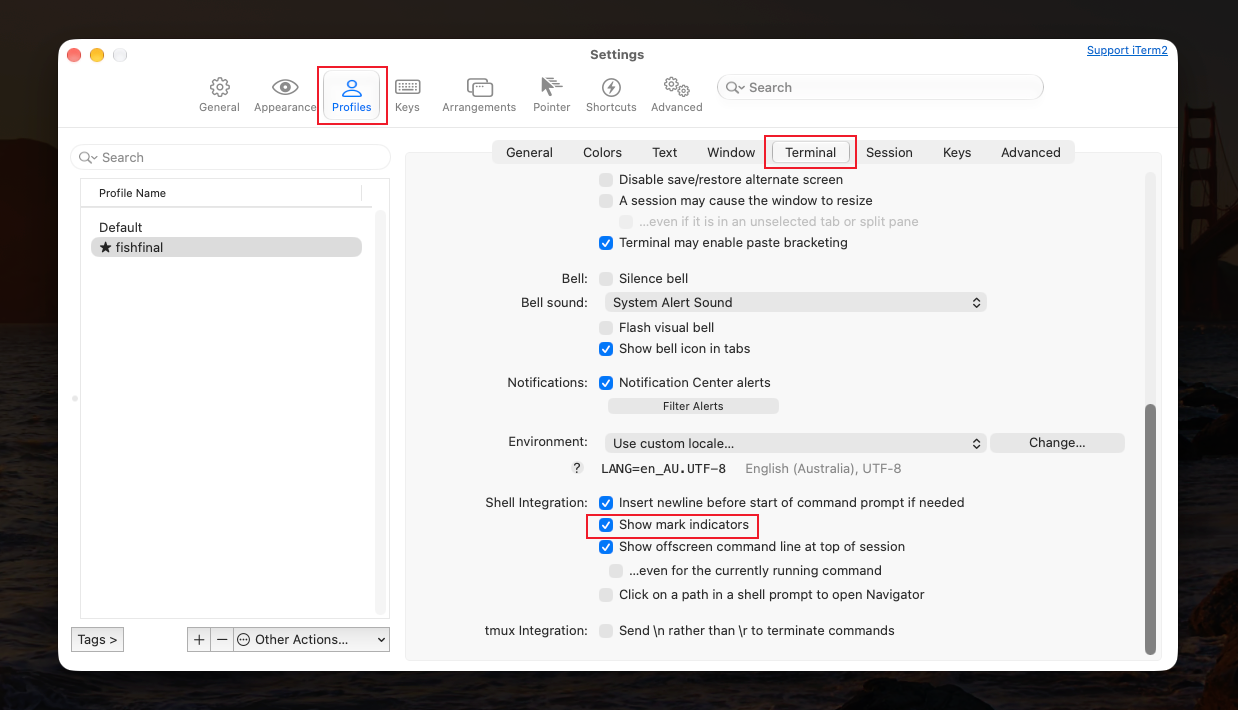
3.1 Cancel Show mark indicators
path:Settings -> Profiles-> Select your configuration (e.g. Default) ->Terminal Tab. Operation: Find Shell Integration Area,Uncheck Show mark indicators.
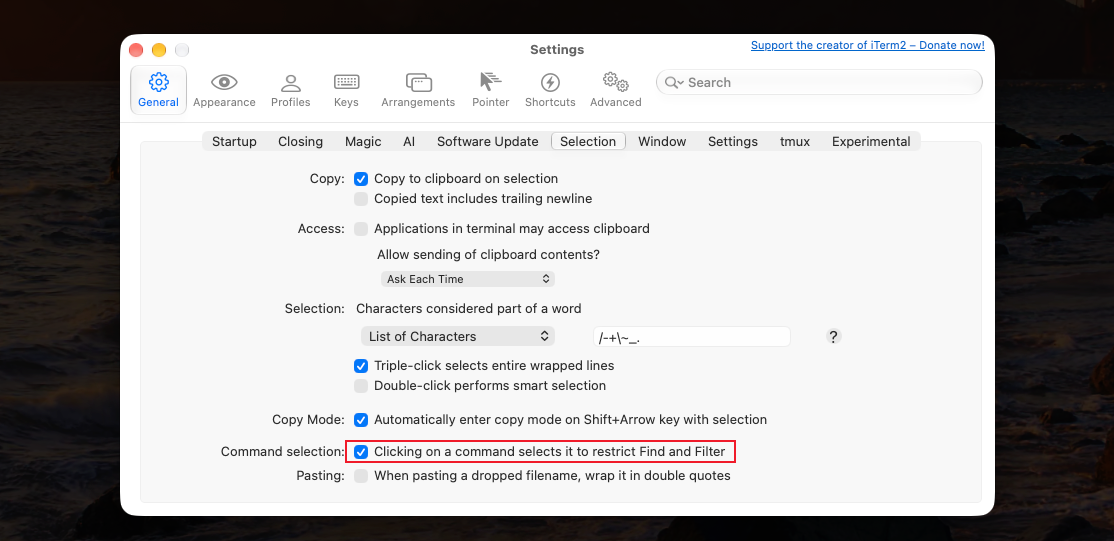
3.2 Remove Click Command Restrictions
path:Settings->General -> Selection Tab. Operation Find it at the bottom Command selection Area,Uncheck Clicking on a command selects it to restrict Find and Filter.
Additional tips
If you still think the gray background when normally dragging to select text looks bad, you can also go to Settings -> Profiles->Colors in, find Selection background color, change its Hex value to 00000000(fully transparent), so there will be no background color at all when selected.
After the setup is complete, the terminal instantly becomes clean and refreshing, and I can finally type commands happily!