English
ESXi 8.0 Configure NTP Time Synchronization Tutorial: Step-by-Step Guide to Using Alibaba Cloud Public NTP Service

Recently, while configuring time synchronization for ESXi 8.0, I found that although NTP configuration is not complicated, there are several key steps that are easy to miss. This article records my complete process of configuring the Alibaba Cloud public NTP service, hoping to help friends who encounter the same problem.
Preface
NTP (Network Time Protocol) is an important service for ensuring server time synchronization. For the virtualization platform ESXi, accurate time synchronization is especially critical, as it directly affects:
Consistency of virtual machine timestamps
The normal operation of cluster HA and DRS features
Accuracy of log auditing
Validity of certificate verification
This article will describe in detail how to configure the NTP service in ESXi 8.0 and use Alibaba Cloud public NTP servers (ntp.aliyun.com) as the time source.
Why choose Alibaba Cloud NTP servers?
Alibaba Cloud public NTP servers have the following advantages:
Fast domestic access speed For ESXi hosts deployed in China: low latency, stable and reliable
High availability Alibaba Cloud provides stable public services, with SLA guaranteed.
Supports IPv4 and IPv6: Good compatibility
Completely free: Can be used without any authentication
Configuration steps
1. Enter the management interface
First, log in to your ESXi host through the ESXi Host Client, in the left navigation bar:
Click Host(Host)
Choose Manage(Management)
2. Enter Time Configuration
In the management interface, find and click in sequence:
System(System)
Time & date(Time and date)
At this point you will see the current system time and the NTP-related configuration status.
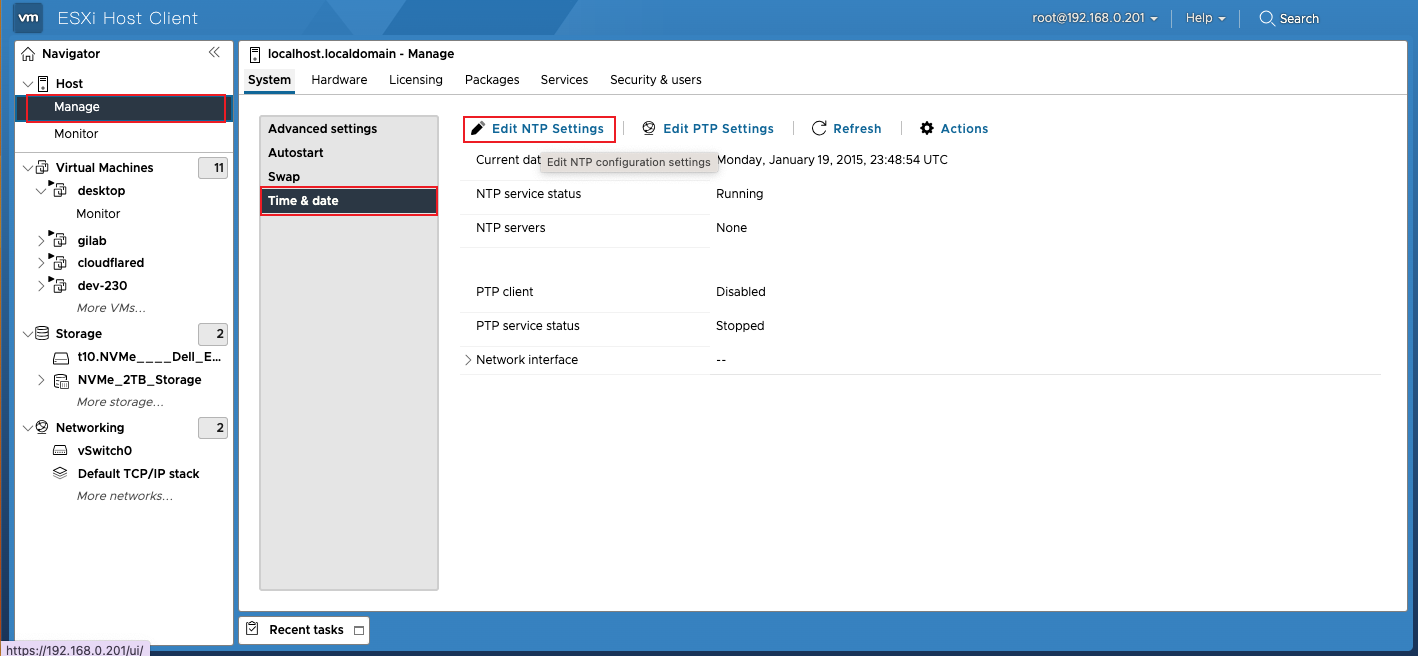
3. Edit NTP settings
On the Time and Date page, find Actions Area, click Edit NTP Settings(Edit NTP settings), enter the configuration dialog box.
4. Configure NTP parameters
In the dialog box that pops up, perform the following configuration:
Enable NTP client: Select Use Network Time Protocol (enable NTP client)
Startup strategy: Select Start and stop with host(Start and stop with the host), so the NTP service will run automatically when ESXi starts.
NTP server: Fill in
ntp.aliyun.com
If you need to configure multiple NTP servers, you can separate them with commas, for example:
ntp.aliyun.com, time1.cloud.tencent.com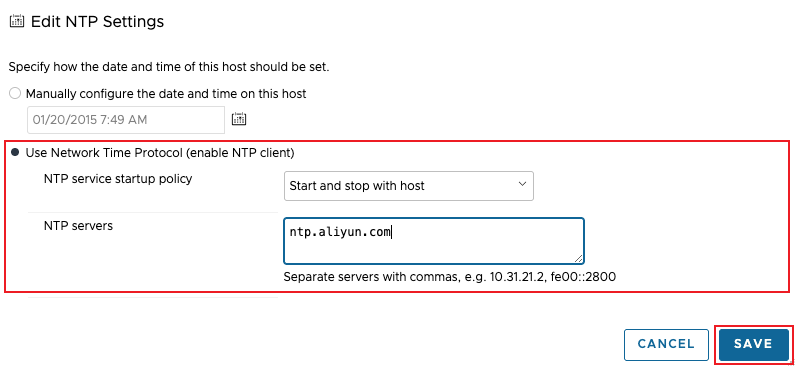
5. Verify configuration
After saving the configuration, return to the Time and Date page and check the following information:
NTP service status(NTP service status): should display as Running
NTP servers: Displayed as just configured
ntp.aliyun.comCurrent date and time: Display the correct time after synchronization
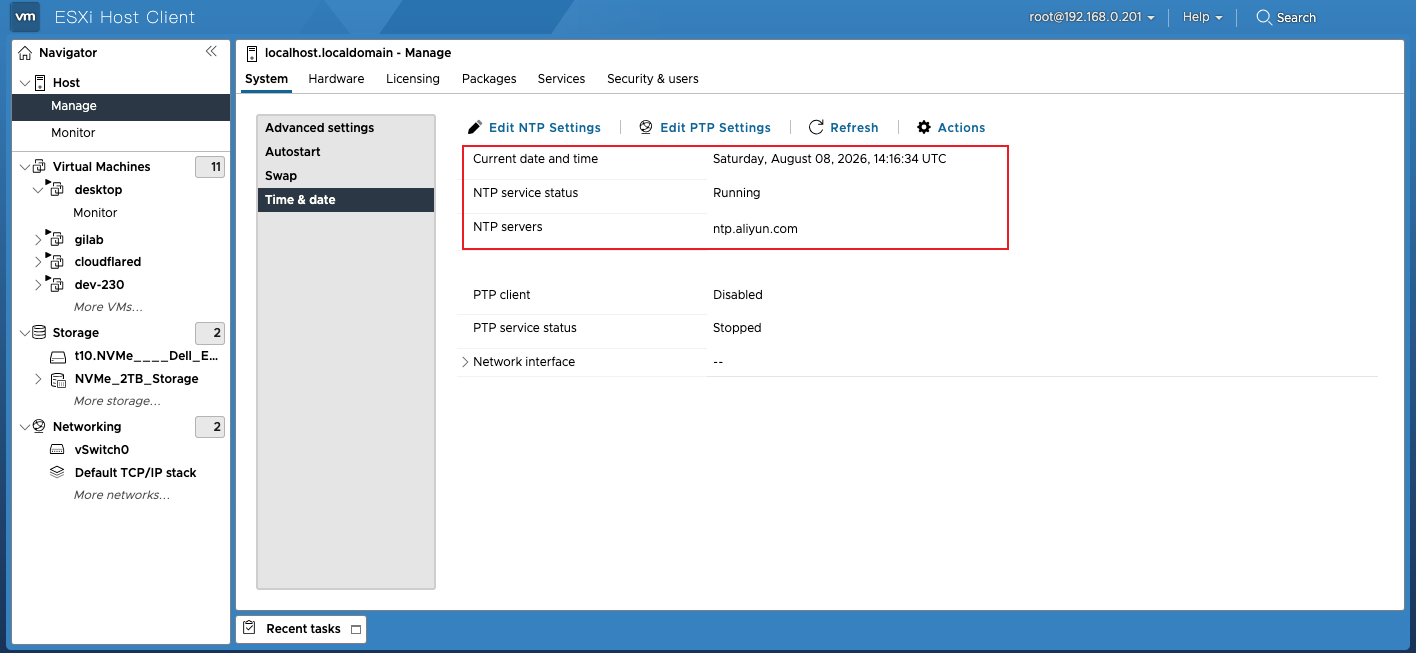
6. Start the NTP service (if it has not started automatically)
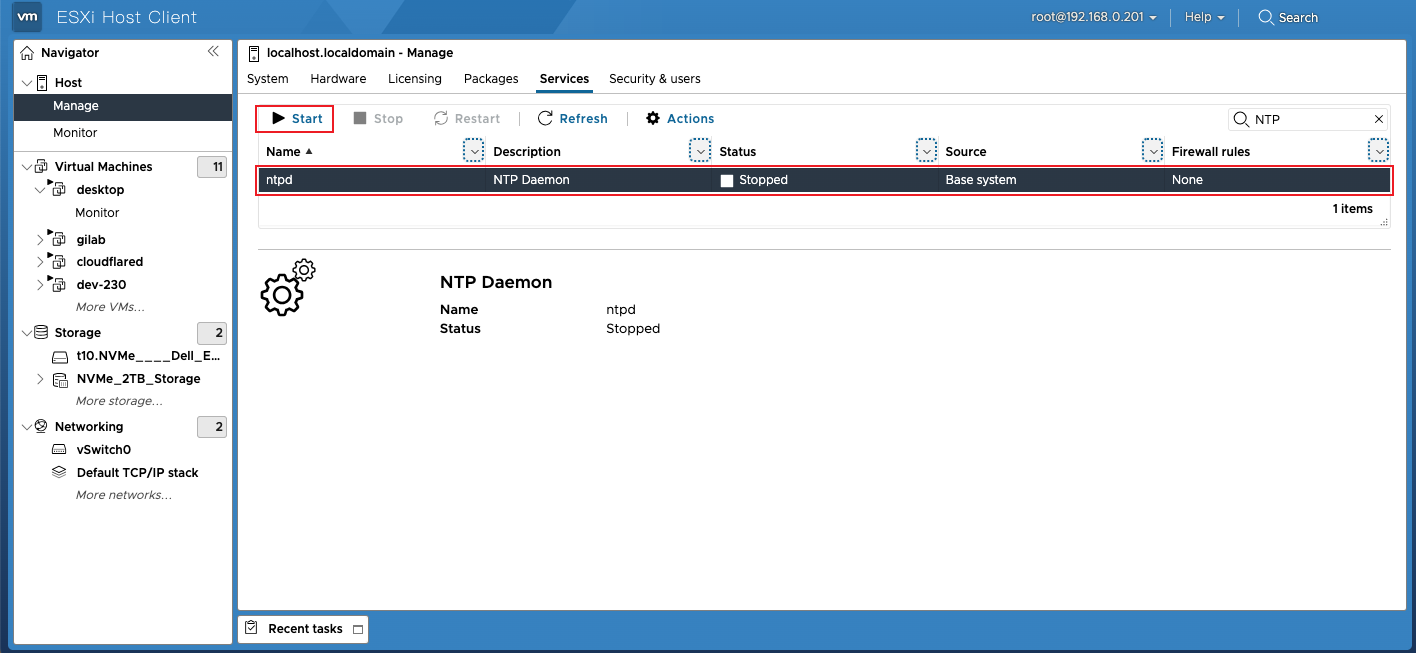
If the NTP service does not start automatically, you can Services(Service) page manual start:
at Manage > System > Services found in
ntpdserviceClick Start Button starts the service
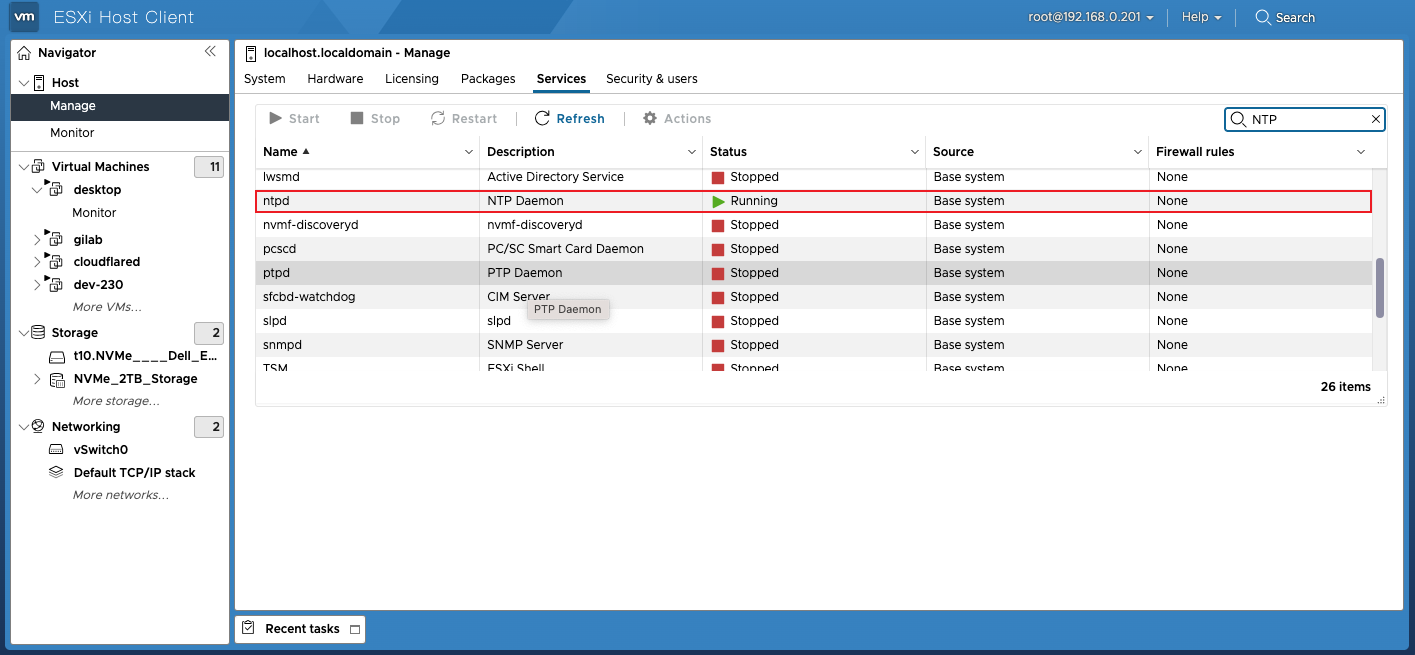
Confirm that the service status has changed to Running
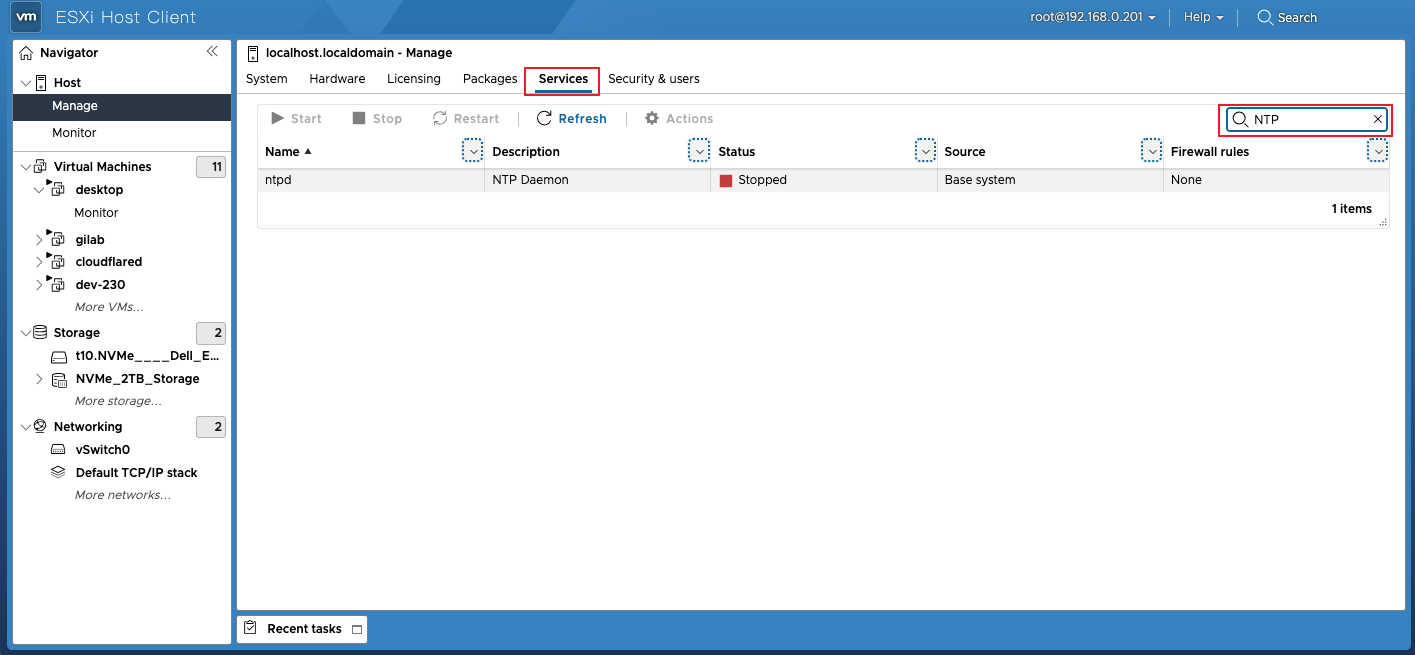
After the service starts, the status will change to Running:
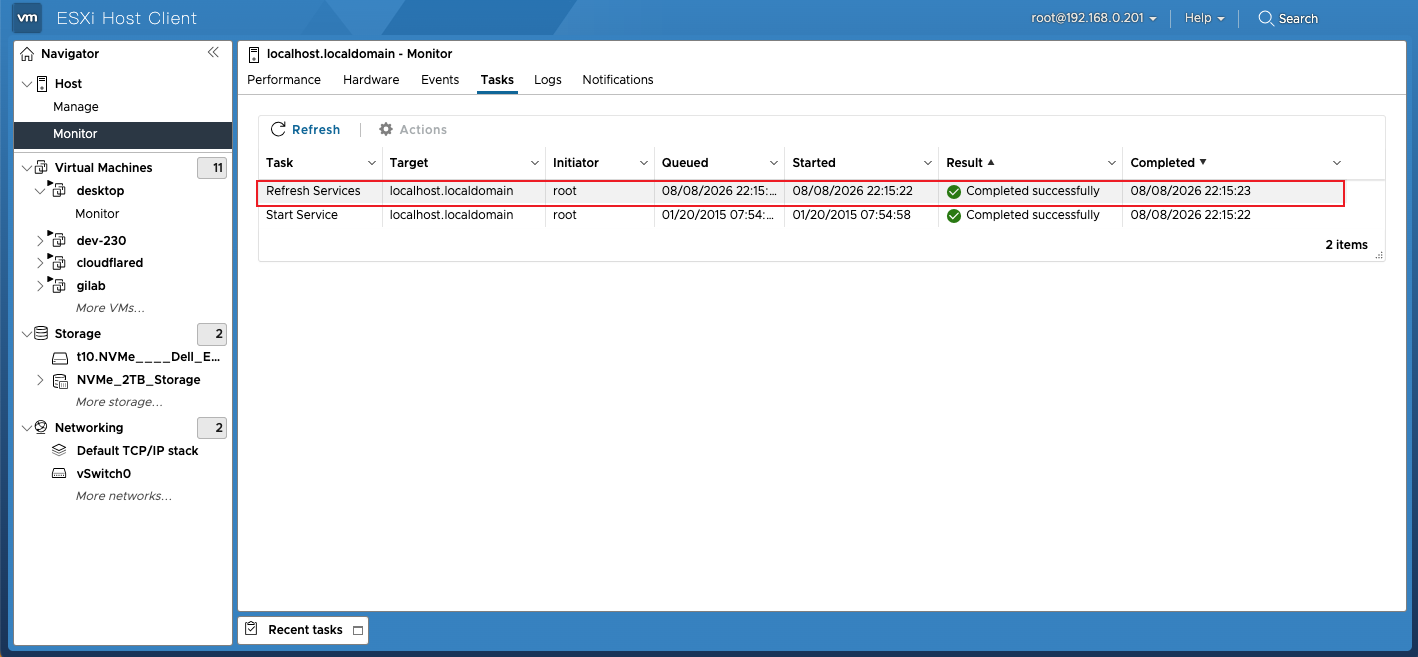
7. Confirm that the task was executed successfully
At Monitor > Tasks On this page, you can view task records related to NTP service startup and configuration and confirm that the operations were completed successfully.
Verify time synchronization
After configuration is complete, you can verify whether NTP synchronization is in effect in the following ways:
Method 1: View via Web UI
At Manage > System > Time & date View the current time and NTP status on the page.
Method 2: Verify via the command line
After enabling the SSH service, log in to the ESXi host and run:
bash
# Check NTP service status
/etc/init.d/ntpd status

# View NTP synchronization details
ntpq -p

# View the current system time
date
ntpq -p Example output of the command:
     remote           refid      st t when poll reach   delay   offset  jitter
==============================================================================
*ntp.aliyun.com  10.137.53.7     2 u  124  128  377    2.312   +0.123   0.456
among them * Indicates the NTP server currently in use.
Common troubleshooting
NTP service failed to start
If the NTP service fails to start, please check:
- Network connectivity: Ensure that the ESXi host can access
ntp.aliyun.com
bash
ping ntp.aliyun.comFirewall rules: NTP uses UDP port 123; ensure it is not blocked by the firewall
DNS resolution Ensure the DNS configuration is correct and can resolve the NTP server domain name.
Time cannot be synchronized
If the NTP service is running but the time is not synchronized:
Check the hardware clock: ESXi will preferentially use the hardware clock; if the deviation is too large, manual adjustment may be required.
Check NTP server status:
bash
ntpq -pView reach Whether the column reaches 377 (indicating complete synchronization)
- Restart the NTP service:
bash
/etc/init.d/ntpd restartBest practice recommendations
- Configure multiple NTP servers: It is recommended to configure at least 2-3 NTP servers to avoid a single point of failure.
ntp.aliyun.com, time1.aliyun.com, time2.aliyun.comEnable start with host: It is recommended to select "Start and stop with host" to ensure the NTP service runs automatically after the host restarts
Regular inspection: It is recommended to regularly check the NTP synchronization status to ensure the time is always accurate.
Time zone settings: In addition to NTP synchronization, you also need to ensure that ESXi's time zone setting is correct.
Rapid-fire Q&A
Q: How long after the NTP service starts will time be synchronized?
It usually takes a few minutes to ten-odd minutes. The first sync may take longer, so please be patient.
Q: Will the NTP service start automatically after ESXi reboots?
If you selected during configuration Start and stop with host, it will start automatically after restart. Otherwise, it needs to be started manually.
Q: Can multiple NTP servers be configured at the same time?
Yes. In the NTP server input box, just separate them with commas, for example:ntp.aliyun.com, time1.aliyun.com.
Q: Will NTP synchronization failure affect virtual machines?
Yes. Time desynchronization can cause applications in the virtual machine to experience certificate validation failures, disordered log timestamps, and other issues.
Q: Why is the server time much faster/slower than the actual time?
It may be that the hardware clock (BIOS time) is off by too much. It is recommended to manually adjust it to close to the correct time first, and then let NTP perform precise synchronization.
Conclusion
NTP configuration in ESXi 8.0 is actually not that complicated; the key is to remember to enable the NTP client and configure the server address, and set the startup policy to start with the host to avoid it becoming invalid after a reboot.
I hope this article helps you avoid unnecessary detours and successfully complete the NTP time synchronization configuration for ESXi 8.0!