
English
The Complete Guide to VMware Fusion Command Line: Managing Virtual Machines Headlessly with vmcli

Why do we need command-line management?
In daily development or operations, we often need to:
Remote management: Connect to the server via SSH without opening a graphical interface
Resource conservation: Reduce GUI resource usage to make macOS run more smoothly
Batch operation: Manage multiple virtual machines simultaneously
Starting from version 12.x, VMware Fusion introduced vmcli command-line tool, becoming the officially recommended CLI management method.
Environment Preparation
1. Check VMware Fusion version
Check version information via VMWare Fusion -> About VMWare Fusion
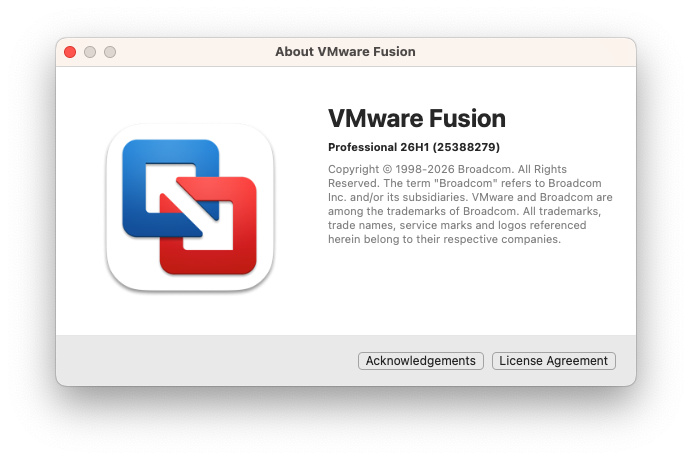
Requirement: Fusion 12.0+ 或 Fusion Pro 13.0+
2. Verify that vmcli is available
bash
# Check whether vmcli is in PATH
which vmcli

# View help
vmcli --help
If it says the command does not exist, you can create a symbolic link:
bash
sudo ln -s /Applications/VMware\ Fusion.app/Contents/Public/vmcli /usr/local/bin/vmcli3. Locate the virtual machine configuration file (.vmx)
Virtual machine configuration files are usually located at:
bash
~/Documents/Virtual Machines.localized/Each virtual machine is a .vmwarevm folder, internal .vmx The file is the core configuration file.
Basic Operation Guide
Define VM path variable (to avoid repeated input)
at ~/.zshrc or ~/.bashrc Add to:
bash
export UBUNTU_VMX="$HOME/Virtual Machines.localized/Ubuntu 22.04.vmwarevm/Ubuntu 22.04.vmx"Path considerations
Do not use
~, need to use$HOMEor an absolute pathSpaces in the path must be enclosed in quotation marks.
If it contains special characters, escaping may be required.
1. Start virtual machine (headless)
bash
# Start in the foreground (progress will be displayed)
vmcli $UBUNTU_VMX Power Start

# Start in background (recommended)
vmcli $UBUNTU_VMX Power Start &> /dev/null &
2. Query virtual machine status
bash
vmcli $UBUNTU_VMX Power queryOutput example:
PowerState: on
cleanShutdown: false
isGuestRebooted: true
isSoftReset: false
powerTypeForPowerOff: soft
powerTypeForPowerOn: soft
powerTypeForReset: soft
powerTypeForSuspend: soft
3. Shut down the virtual machine
bash
# Graceful shutdown (recommended)
vmcli $UBUNTU_VMX Power Stop -o trySoft

# Forced shutdown (equivalent to unplugging the power)
vmcli $UBUNTU_VMX Power Stop -o hard

# Strictly require VMware Tools for coordinated shutdown
vmcli $UBUNTU_VMX Power Stop -o requireSoft
Note
VMware this command tool's --help The document has an error! It shows that the parameter is a number.<2, 3, 1, 0>, but the actual parameter passing must use string enum values (trySoft,hard etc.). Passing a number will throw an error:Invalid argument: '0', valid enums are: trySoft, requireSoft, configDefault, hard
Parameter Description:
| enum value | Behavior | Applicable scenarios |
|---|---|---|
trySoft | First try a graceful shutdown via VMware Tools; if that fails, fall back to ACPI (recommended). | Daily shutdown, data security |
requireSoft | Strictly require VMware Tools shutdown; report an error if it fails. | Ensure the Guest cooperates with shutdown. |
hard | Cut power immediately without notifying the Guest OS | Force shutdown when the system is unresponsive |
configDefault | Use the virtual machine's default configuration (ineffective in actual testing) | Not recommended for use |
Note
VMware Fusion's vmcli command-line tool is designed like fucking shit!
Verify the shutdown result:
bash
# Execute shutdown
vmcli $UBUNTU_VMX Power Stop -o trySoft

# Query status confirmation
vmcli $UBUNTU_VMX Power query
# PowerState: off
# cleanShutdown: true  ← true means normal shutdown, false means abnormal power loss
4. Suspend/Resume Virtual Machine
bash
# Normal suspend (recommended)
vmcli $UBUNTU_VMX Power Suspend -o trySoft

# Force suspend (without notifying Guest OS)
vmcli $UBUNTU_VMX Power Suspend -o hard

# Strictly requires VMware Tools to support suspend.
vmcli $UBUNTU_VMX Power Suspend -o requireSoft
Note
The same question:--help The displayed parameter is a number, but the actual argument must use a string enum value (trySoft、hard etc.).
Parameter Description:
| enum value | behavior | Applicable scenarios |
|---|---|---|
trySoft | Try VMware Tools soft suspend, fall back if it fails (recommended) | Daily suspend, quick resume |
requireSoft | Strictly require VMware Tools to suspend; report an error if it fails. | Ensure the Guest cooperates with suspend. |
hard | Suspend immediately without notifying the Guest OS | Force suspend when the system is unresponsive |
configDefault | Use the default virtual machine configuration (tested and ineffective) | Not recommended for use |
Resume from suspended state:
bash
# Simply use Power Start to restore it.
vmcli $UBUNTU_VMX Power Start
Verify whether the suspension was successful.:
bash
# Query status after suspend
vmcli $UBUNTU_VMX Power query
# PowerState: suspended  ← indicates suspended

# Query again after recovery
vmcli $UBUNTU_VMX Power query
# PowerState: on  ← indicates that it has resumed operation
Actual test results:
bash
# State before suspension
vmcli $UBUNTU_VMX Power query
# PowerState: on

# Suspend execution
vmcli $UBUNTU_VMX Power Suspend -o trySoft

# State after suspension
vmcli $UBUNTU_VMX Power query
# PowerState: suspended
Usage scenarios:
bash
# Suspend before leaving work to save resources.
vmcli $UBUNTU_VMX Power Suspend -o trySoft

# Resume for work the next day, start up in seconds
vmcli $UBUNTU_VMX Power StartPrecautions:
A suspended state occupies disk space (equivalent to the virtual machine's memory size).
Compared with shutting down, resuming from suspend is extremely fast (3–5 seconds).
Long-term suspension is not recommended; regularly restarting the virtual machine is healthier.
cleanShutdown: falseIt's normal; suspend does not count as a normal shutdown.
5. Restart the virtual machine
bash
# Soft restart (recommended)
vmcli $UBUNTU_VMX Power Reset -o trySoft

# Hard reboot (immediate reboot without notifying the Guest OS)
vmcli $UBUNTU_VMX Power Reset -o hard

# Strictly require VMware Tools to cooperate with a restart.
vmcli $UBUNTU_VMX Power Reset -o requireSoft
Note
The same question:--help The displayed parameter is a number, but the actual argument passed must use a string enum value (trySoft,hard etc.). Passing a number will cause an error:Invalid argument: '2', valid enums are: trySoft, requireSoft, configDefault, hard
Parameter description:
| Enumeration value | behavior | Applicable scenarios |
|---|---|---|
trySoft | Try a VMware Tools soft reboot first; if it fails, fall back (recommended) | Daily restart, data security |
requireSoft | Strictly require VMware Tools to restart; report an error if it fails. | Ensure the Guest cooperates with the restart. |
hard | Restart immediately without notifying Guest OS | Force restart when the system is unresponsive |
configDefault | Using the virtual machine's default configuration (tested and found ineffective) | Not recommended for use |
Verify the restart result:
bash
# Perform a soft reboot
vmcli $UBUNTU_VMX Power Reset -o trySoft

# Query status confirmation
vmcli $UBUNTU_VMX Power query
# PowerState: on
# isSoftReset: true  ← true means it is a soft reboot
Actual test results:
bash
# Check status before restart
vmcli $UBUNTU_VMX Power query
# PowerState: on
# cleanShutdown: false
# isGuestRebooted: false
# isSoftReset: false

# Perform a soft reboot
vmcli $UBUNTU_VMX Power Reset -o trySoft

# Query status after restart
vmcli $UBUNTU_VMX Power query
# PowerState: on
# isSoftReset: true  ← confirmed it is a soft reset
Troubleshooting
Problem 1: The path does not exist or the variable is unresolved
phenomenon:
vmcli: VMX : '~/path/to/vm.vmx' does not exist!Solution:
Don't use
~, to use$HOMECorrect example:
export VMX="$HOME/path/to/vm.vmx"
Problem 2: vmcli command not found
solution:
bash
# Method 1: Create a symbolic link
sudo ln -s /Applications/VMware\ Fusion.app/Contents/Public/vmcli /usr/local/bin/vmcli

# Method 2: Add to PATH
export PATH="/Applications/VMware Fusion.app/Contents/Public:$PATH"
# Add the above line to ~/.zshrc or ~/.bashrc

# Verification
which vmcli
vmcli --version
Reference Resources
Command cheat sheet
| Operation | Correct command |
|---|---|
| Start | vmcli $VMX Power Start |
| Query status | vmcli $VMX Power query |
| Normal shutdown | vmcli $VMX Power Stop -o trySoft |
| Force shutdown | vmcli $VMX Power Stop -o hard |
| Soft reboot | vmcli $VMX Power Reset -o trySoft |
| Hard reboot | vmcli $VMX Power Reset -o hard |
| Normal suspend | vmcli $VMX Power Suspend -o trySoft |
| Force Suspend | vmcli $VMX Power Suspend -o hard |
| Resume from suspend | vmcli $VMX Power Start |
| Get IP | vmcli $VMX Guest getipaddress |
Summary
Through vmcli Command-line tools, we can:
Terminal access- No need to open the GUI; operate via SSH
Batch operation- Manage multiple virtual machines simultaneously
Resource conservation- Reduce GUI resource usage
Flexible control- Supports complete lifecycle management including start/stop/suspend/restart
After mastering these tips, your VMware Fusion efficiency will be greatly improved!