
English
Stop installing operating systems one by one! Hands-on vCenter template cloning: 5 virtual machines in 5 minutes.

Preface
Still frustrated by repeatedly installing operating systems? This article shows you step by step how to use the vCenter template cloning feature to deploy 5 virtual machines in batches in 5 minutes, boosting efficiency 20x!
I. Opening: Are you still doing such "foolish things"?
Imagine this scenario:
You need to set up a Kubernetes cluster (or database cluster) with 5 machines.
Your process is: mount ISO → install operating system → wait 30 minutes → apply patches → install Agent → configure network →Repeat 5 times.
By the time you got to the 3rd machine, you were already so sleepy you wanted to doze off; by the 5th machine, you had even forgotten whether the 2nd machine had a certain dependency package installed.
This is not diligence; this is wasting life.
Actually,Smart operations and developers have long been using vCenter's "template cloning" feature.. You only need to prepare one golden image, and the remaining machines,5 units can be done in just 5 minutes..
II. Prerequisites: What do you need to prepare?
Before you begin, please make sure you have the following environment:
| Environmental requirements | Description |
|---|---|
| vCenter Server | Deployed and running normally (either version 7.0 or 8.0 is acceptable) |
| ESXi host | Added to vCenter and has sufficient storage space |
| A “golden image” virtual machine | The operating system has been installed, the basic software has been configured, the patches have all been applied, and In a powered-off state |
💡What is a "golden image"?
It is the “model unit” you have carefully refined—for example, a virtual machine with CentOS 7 installed, SSH configured, and Docker and JDK installed. It is the “master template” for all subsequent machines.
III. Core Operations: From Template Cloning to Batch Deployment
Step 1: Clone the "golden image" as a template
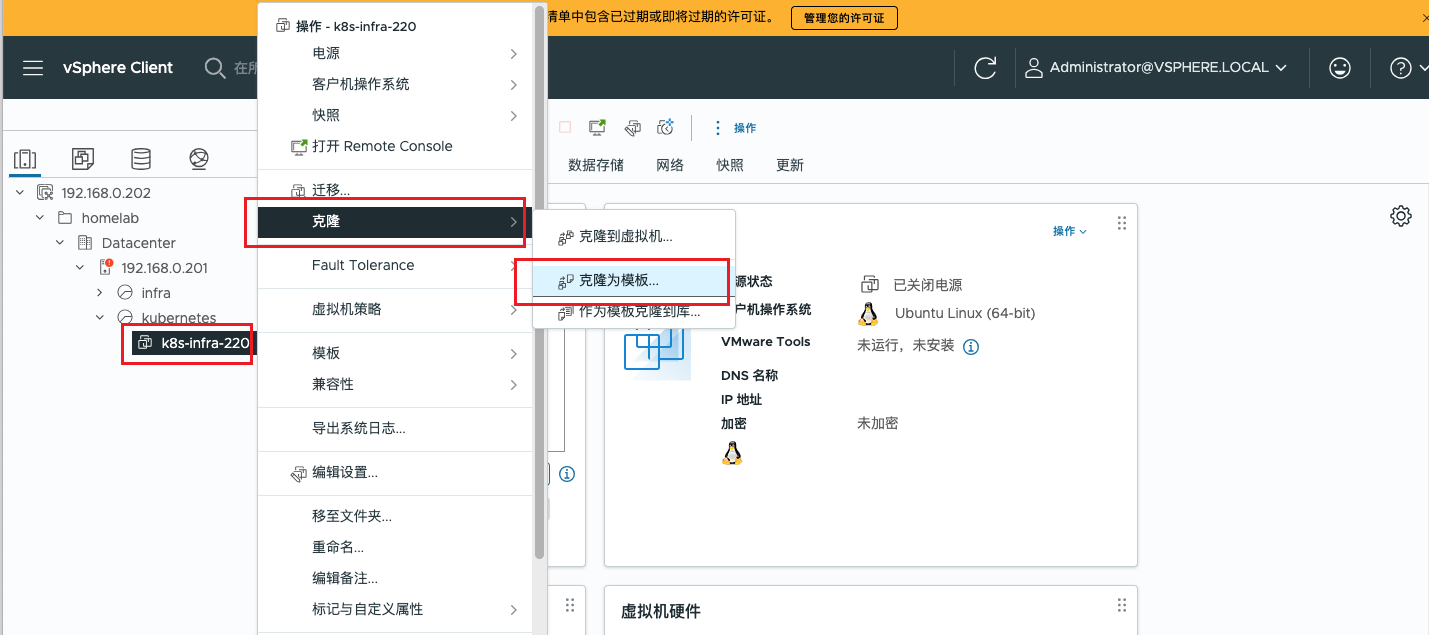
In the left navigation pane of the vSphere Client, locate your "golden image" virtual machine.
Right-click→clone→“克隆为模板”.
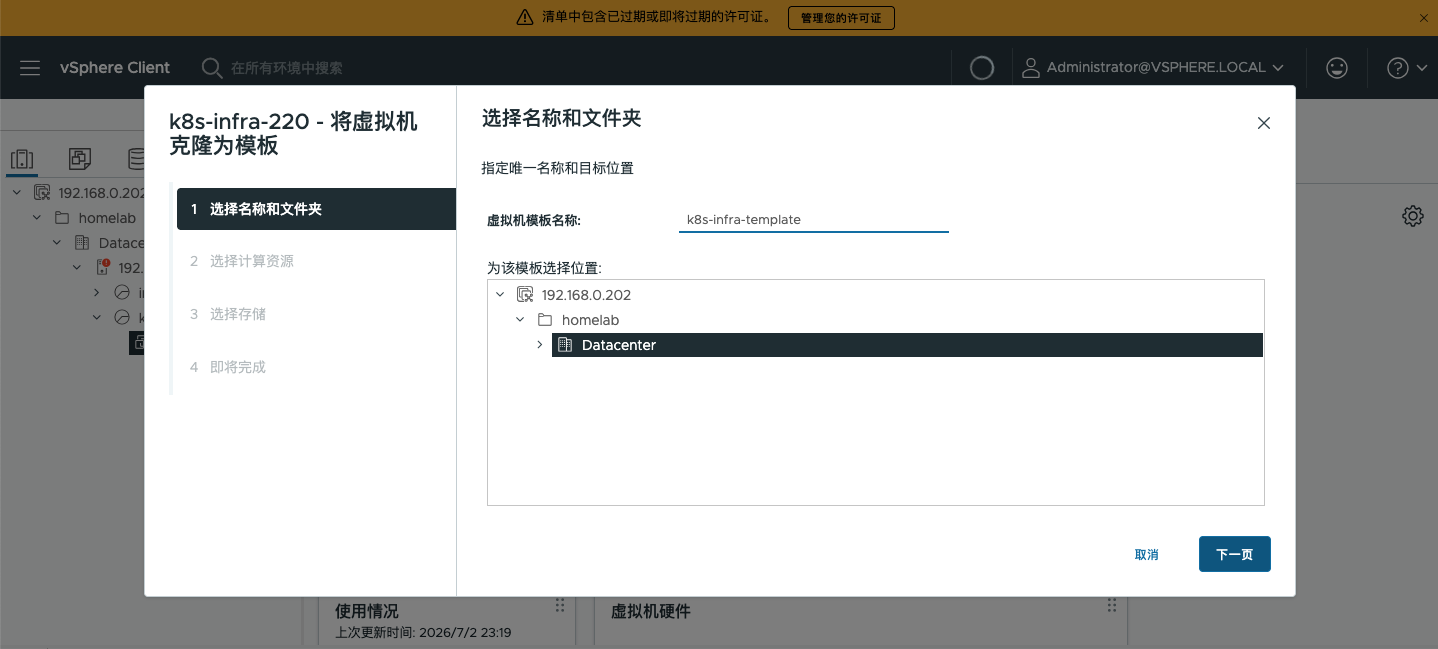
- Follow the wizard prompts and enter the template name (e.g.
k8s-infra-template), select storage location.
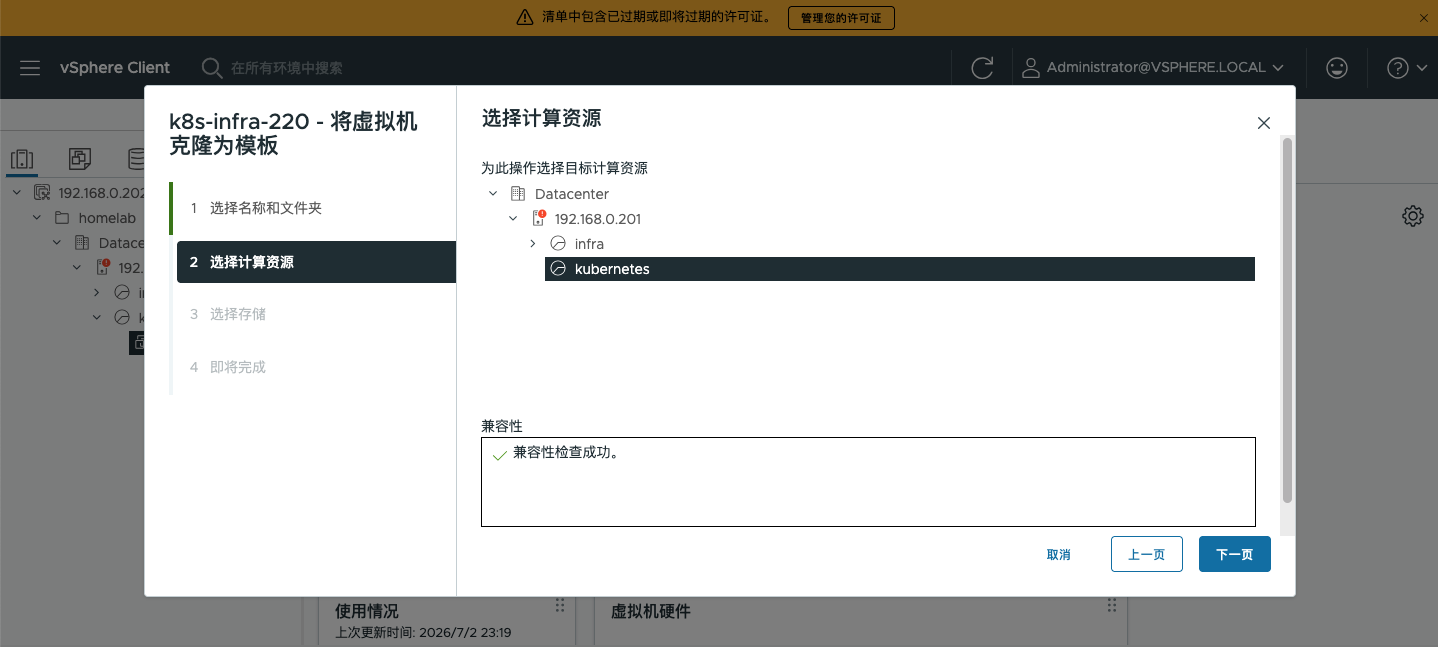
- Select computing resources.
- Select storage.
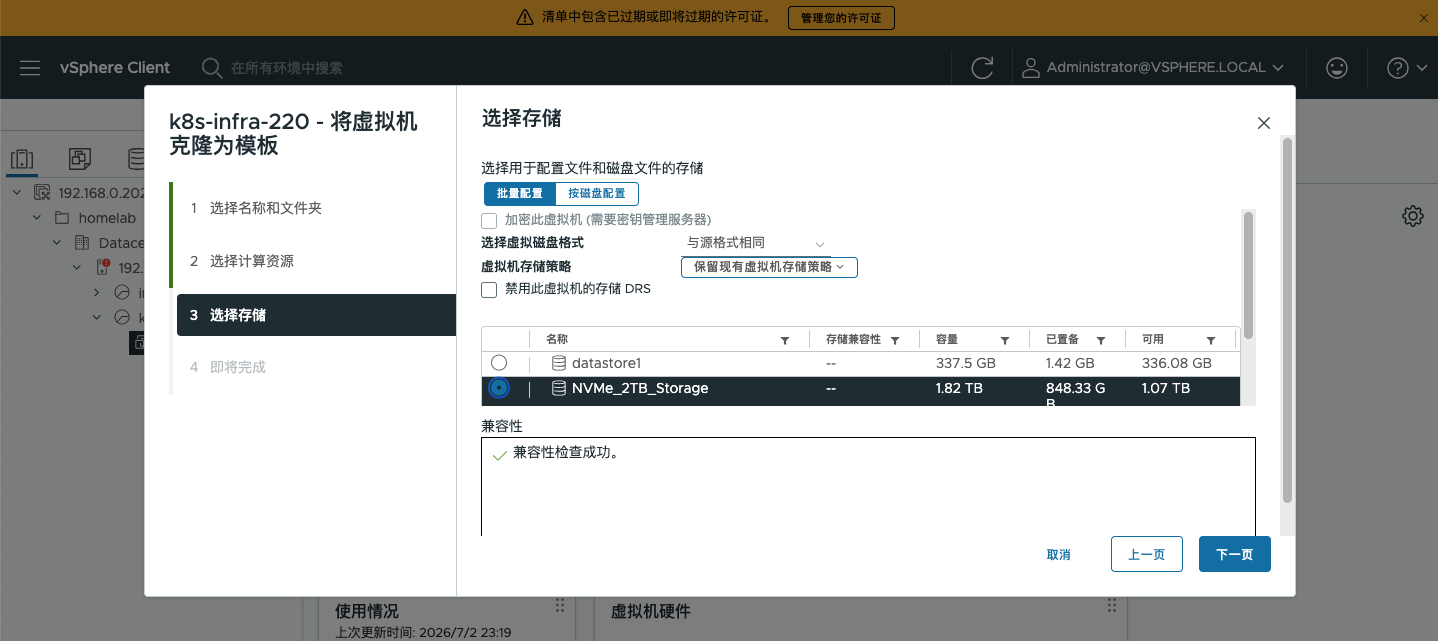
- Click "Finish" and wait for the cloning to complete.
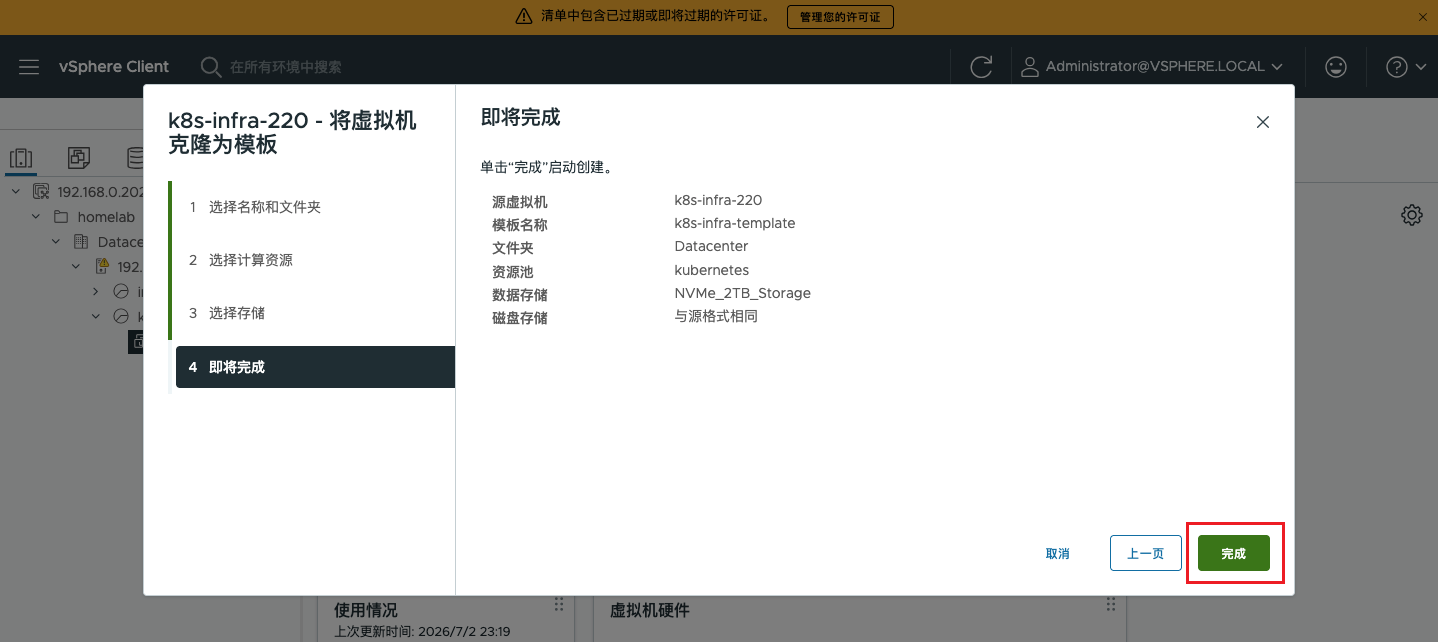
⚠️Note
Before cloning Be sure to shut down the virtual machine.; After cloning is complete, the original virtual machine remains unchanged, and the newly generated template will appear in the Templates list.
After cloning is complete, you can see the template cloned from the original virtual machine in the storage location (for example:k8s-infra-template), it is the “mold” for creating the next four machines.
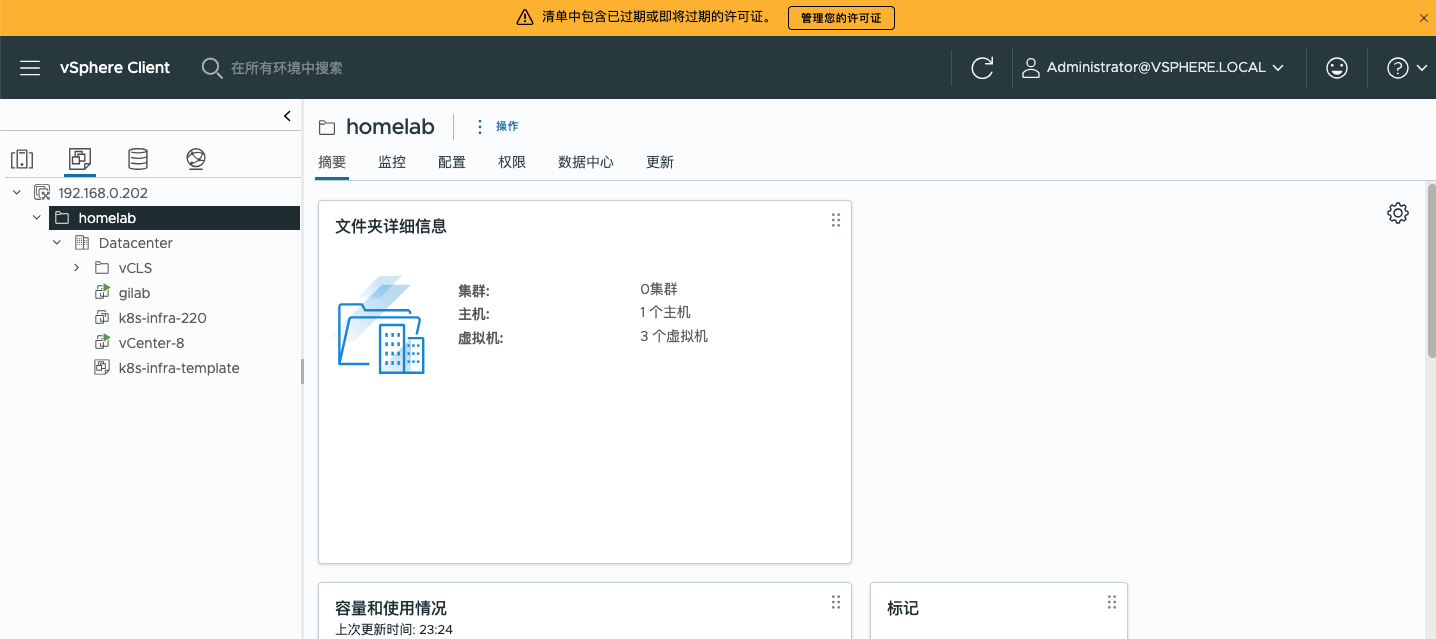
Step 2: Deploy virtual machines from a template (core step for batch cloning)
- On the corresponding server or computing resource, right-click and select "New Virtual Machine"; in the pop-up wizard dialog box, select "Deploy from Template".
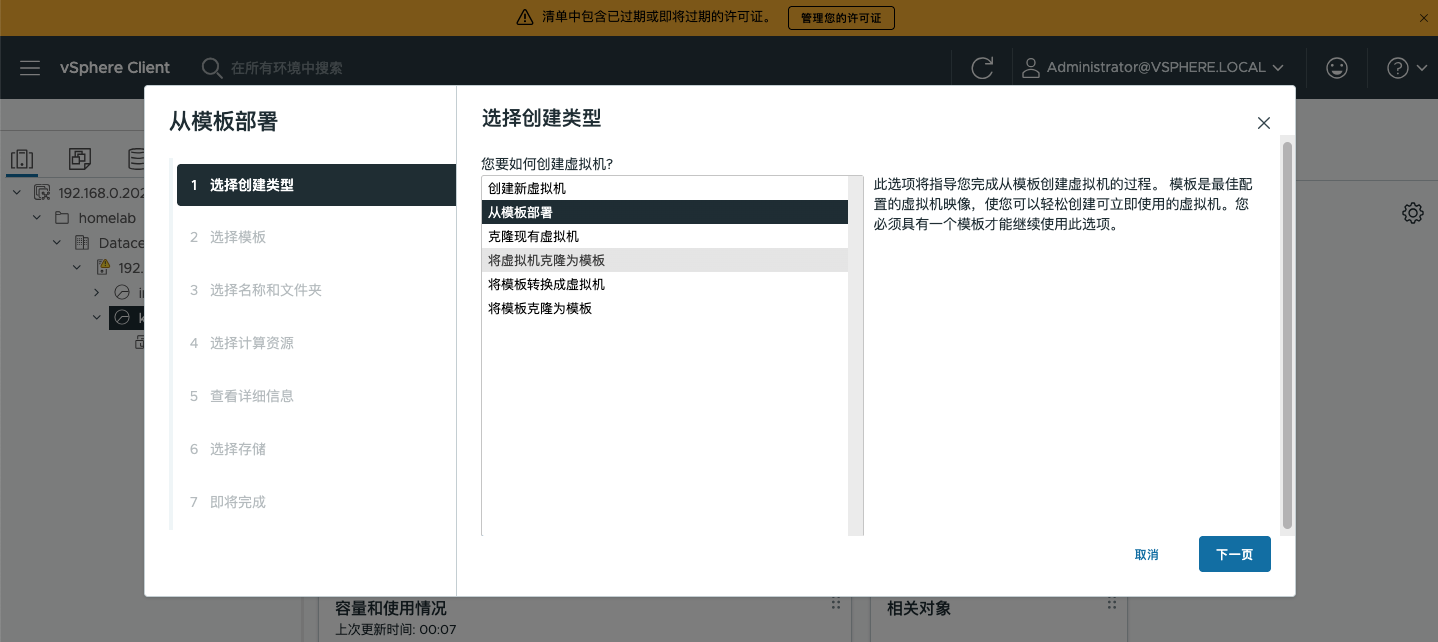
- Select a template.
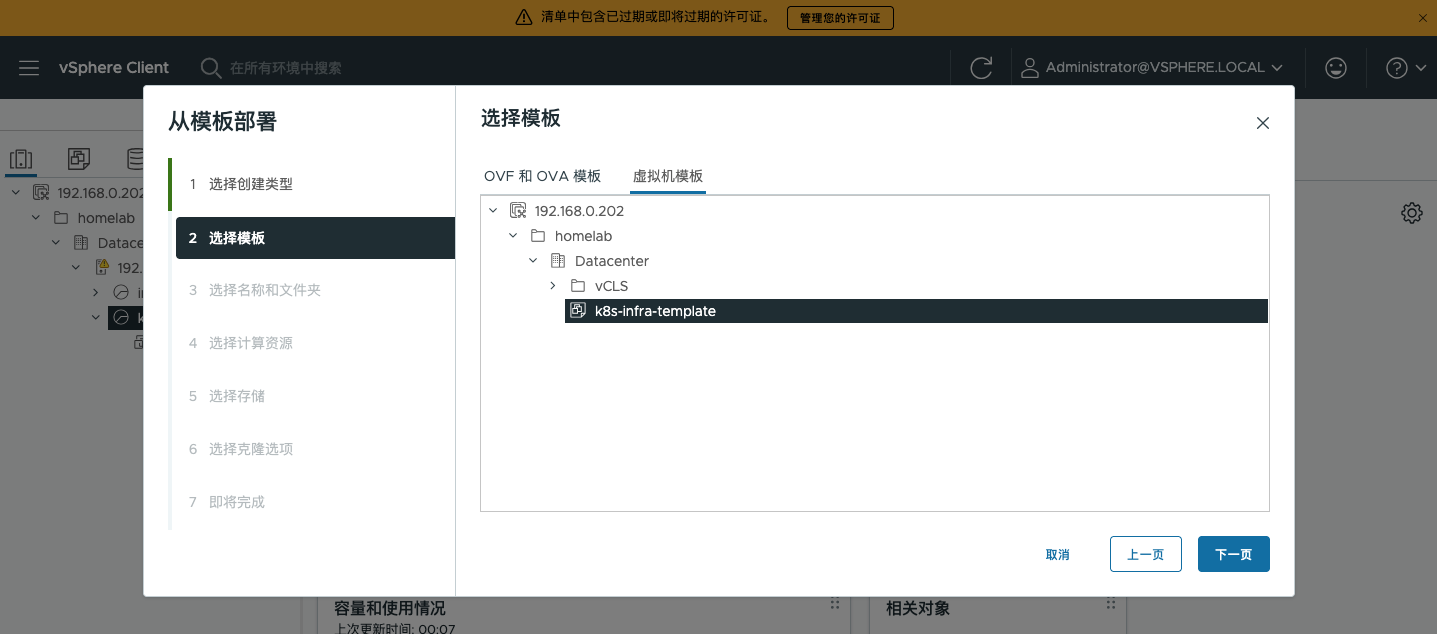
The subsequent steps are not much different from those for creating a regular virtual machine, so we will not go into detail here.
💡Tips
If you need to deploy 5 machines at the same time,You can repeat "Deploy from template" 5 times., just with different names. Or open multiple browser tabs and operate in parallel, which is much faster than setting up systems one by one.
Step 3: Personalized configuration after cloning (avoid conflicts)
Although cloned virtual machines have identical configurations, booting them directly may encounter the following "conflicts":
The hostnames are the same.(causing network conflicts)
Same IP address(causing network conflicts)
SSH host keys are the same(Security Warning)
Solution (manual method):
- After booting up, log in to the virtual machine and execute:
bash
hostnamectl set-hostname k8s-infra-221Modify
/etc/hostsFile, replace the old hostname with the new hostname.Delete old SSH host keys (so the system automatically regenerates them on reboot):
bash
rm -rf /etc/ssh/ssh_host_*- Restart network services and configure a static IP.
💡Advanced Suggestions
If you do not want to manually modify the configuration, you can use vCenter's Custom specification This feature (similar to Windows sysprep). During deployment, select "Customize operating system" and enter the hostname, IP, and other information; the system will automatically complete personalized configuration on first boot. This feature requires VMware Tools to be installed in the template.
IV. Effectiveness Comparison: Let the Data Speak
| Comparison dimension | Traditional method (install one by one) | vCenter template cloning |
|---|---|---|
| Time per unit | Approximately 60 minutes (including system installation + patches + software) | About 3 minutes (including cloning + personalized configuration) |
| Total time for 5 units | Approx. 5 hours (including repetitive work) | About 15 minutes (including deploying multiple units simultaneously) |
| Consistency | Relies on manual operation and is prone to errors. | 100% consistent, avoid configuration drift |
| Reproducibility | Low (manual intervention required for each installation) | High (build once, reuse infinitely) |
Conclusion: Template cloning is not only an improvement in efficiency, but even more so the cornerstone of operations standardization.
V. Summary and Advanced Recommendations
Restatement of core viewpoints
vCenter template cloning is the "lever" for improving the efficiency of operations and development environment provisioning. One-time investment (building a golden image), unlimited reuse. For scenarios requiring batch deployment (such as cluster setup, test environment delivery, and development sandbox construction), its value is irreplaceable.
Advanced Directions (For Reference Only)
Content Library (Content Library): Store templates in the vCenter content library to enable template sharing across clusters and data centers.
Automation (PowerCLI / Ansible): Write a script to batch clone virtual machines and achieve unattended deployment.
Infrastructure as Code (Terraform) Declaratively create and manage virtual machines using Terraform in a vCenter environment.
The Final Call
Stop wasting precious time clicking “Next” over and over again.
Starting today, use vCenter template cloning and save your time for what really matters—like sleeping a little longer, or learning a new technology.