
English
VMware Fusion + Ubuntu Server 22.04: A Complete Guide to Configuring a Static Internal IP in NAT Mode

Preface: Why do you need to read this?
If you are like me:
Mac disk space is critically low, but you still have to install a Linux virtual machine for development/learning;
Running back and forth between the office and home, the Wi-Fi network segments are different, the virtual machine IP keeps changing, and constantly changing the SSH connection address is a huge pain;
I just want to quietly run an Ubuntu locally on my Mac, without it being accessed by others on the LAN, and without it being affected by changes in the network environment.
Then this article is written for you.
Final effect: Open Terminal on your Mac, and enter ssh [email protected] Whether you are at the company or at home, you can always connect to this Ubuntu machine, and Ubuntu can also access the external network normally to install software packages.
Environmental information
| Project | Version/Configuration |
|---|---|
| Host machine | macOS (Intel / Apple Silicon both supported) |
| Virtual machine software | VMware Fusion Professional 26H1 |
| Client system | Ubuntu Server 22.04.5 LTS |
| Virtual machine hardware | 2-core CPU / 4GB RAM / 10GB disk |
| Network Mode | NAT(Internet Sharing) |
Step 1: Hardware configuration when creating a virtual machine
1.1 Processor and Memory
When creating a virtual machine in VMware Fusion, go to the "Processors & Memory" configuration:
Processors:
2 processor cores(Enough)Memory: Select
4096 MB(4GB), this is the recommended value
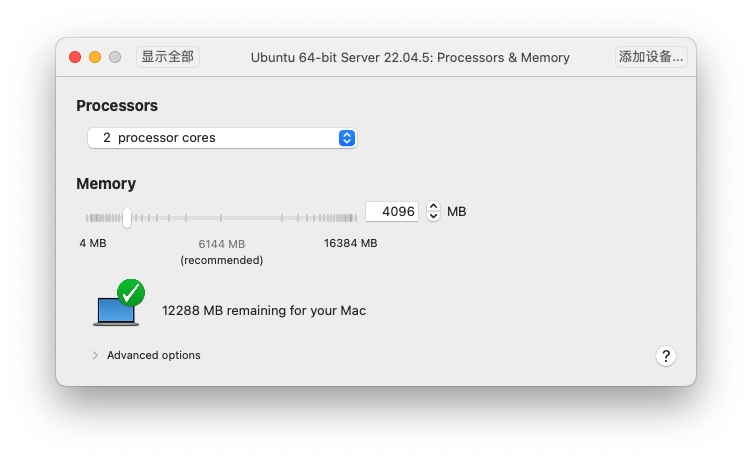
Why 4GB?
Ubuntu Server 22.04 minimal installation only requires~512MB, but after installing development tools, Docker, and databases, 4GB will be more comfortable. If your Mac has plenty of memory (16GB+), you can allocate 6GB or 8GB.
1.2 Hard Drive Size (Watch Out for Pitfalls)
In the "Hard Disk (SCSI)" configuration,It is recommended to set Disk size to 10GB., rather than 20GB.
Ubuntu Server + basic development tools + Docker, 10GB is enough;
VMware default is Dynamic growth Disk, initially only occupies~2.5GB, it will gradually expand to the set value with use;
If your Mac is tight on disk space, setting it to 20GB is like planting a time bomb—when it fills up, the Mac will freeze and virtual machines may crash.
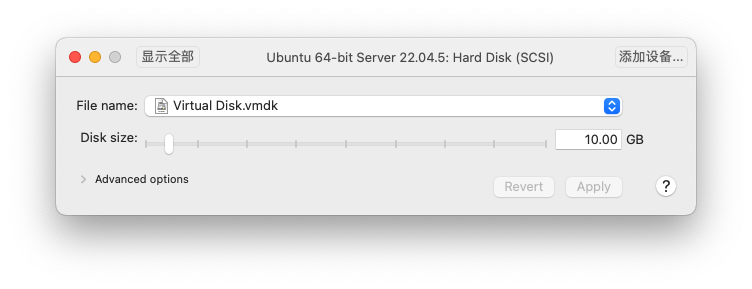
Disk space critical warning
If your Mac has less than 15GB of free space, it is recommended not to use a 20GB virtual disk. 10GB is a safer choice.
1.3 Advanced Options (Should I check them?)
At the bottom of "Processors & Memory" there are two advanced options:
| Options | default | Suggestion |
|---|---|---|
| Enable hypervisor applications | Do not check | If you don't plan to install Docker/KVM in Ubuntu, you don't need to check it. |
| Enable IOMMU | Uncheck | When GPU passthrough / high-performance network card is not required, you don’t need to check it. |
Step 2: Selection of network mode (core)
2.1 Comparison of the Three Modes
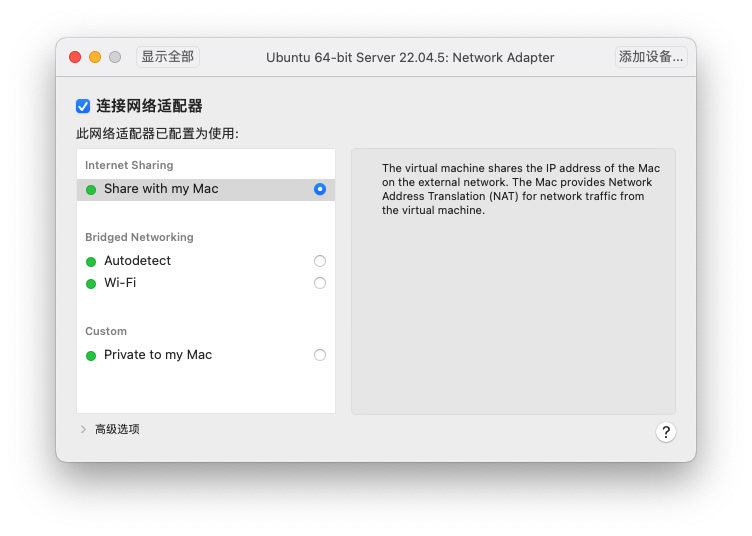
In the "Network Adapter" configuration, VMware Fusion provides three main network modes:
| Mode | Description | Applicable scenarios |
|---|---|---|
| Internet Sharing(NAT) | Ubuntu accesses the Internet through a Mac, and the Mac and Ubuntu communicate over a virtual private network. | ✅This article recommends: Requires an internet connection to install the software, and only needs local access on a Mac. |
| Bridged Networking | Ubuntu and Mac are on the same physical LAN and obtain independent IPs | ❌ Other devices can also access it, which is insecure; moreover, the IP changes with the network environment. |
| Private to my Mac | Pure private network; Ubuntu cannot access the external network. | ⚠️ Only suitable for fully offline scenarios where software cannot be installed. |
2.2 Why choose "Internet Sharing"?
✅ Ubuntu can access the Internet (install
aptpackage, pull Docker image,git clone);✅ Mac can access Ubuntu via SSH;
✅ Other physical devices Unable Access Ubuntu (NAT provides natural isolation);
✅ The IP address can be fixed and will not be affected by changes to the company/home network.
Summarize in one sentence.: NAT mode = Internet access + local access + static IP + security isolation, perfectly matching the requirements.
Step 3: Configure a fixed internal network static IP (core operation)
3.1 Principle Description
VMware Fusion During installation has already pre-created multiple virtual bridge devices on macOS (bridge100,bridge101,bridge102 etc.). When you select for the virtual machine Internet Sharing (NAT mode) At that time, Fusion will activate one of the bridges and assign it an independent private subnet (usually 192.168.xxx.0/24), connect the Mac and the virtual machine to this virtual network.
Mac communicates with Ubuntu through this virtual bridge;
Ubuntu accesses the external network through NAT via the Mac's physical network interface.
Key points: this 192.168.xxx.xxx The network segment is VMware internal virtual Yes, it is completely unaffected by the company/home Wi-Fi subnet. So as long as the Mac is on, this fixed IP will always remain valid.
Differences in network adapter naming between VMware Fusion and Workstation
If you have used VMware Workstation on Windows, you may be used to vmnet8 this name. But in VMware Fusion In this case, the naming rules for virtual NICs are different:
| software | NAT mode virtual network adapter |
|---|---|
| VMware Workstation (Windows) | vmnet8 |
| VMware Fusion (macOS) | bridgexxx(such as bridge100,bridge101,bridge102) |
Fusion will create a different one for each independent NAT network.bridge, when you create the first virtual machine using NAT mode, it is usually assigned bridge100, and subsequently increment sequentially. You can through ifconfig Check which bridge is currently in use.
3.2 Step 1: Check the NAT subnet on the Mac
Execute in Mac Terminal:
bash
ifconfig | grep -A 5 "bridge"Find those with status UP and RUNNING output example of the bridge device:
bridge102: flags=8863<UP,BROADCAST,SMART,RUNNING,SIMPLEX,MULTICAST> mtu 1500
    inet 192.168.98.1 netmask 0xffffff00 broadcast 192.168.98.255
    ...
Note down:
bridge name:
bridge102(possibly alsobridge100orbridge101)Gateway IP:
192.168.98.1(This is the address of the bridge on the Mac)Network segment:
192.168.98.0/24
So our Ubuntu static IP can be set to 192.168.98.100.
How can you confirm which bridge you are using?
A simple method: first execute in Ubuntu ip addr Check the IP currently obtained via DHCP, then execute on the Mac ifconfig, find The inet address range is on the same subnet as the Ubuntu IP. That bridge is your NAT network adapter.
3.3 Step 2: Check the network interface name in Ubuntu
Run in the Ubuntu terminal:
bash
ip addrFind output similar to this:
2: ens33: <BROADCAST,MULTICAST,UP,LOWER_UP> mtu 1500 qdisc fq_codel state UP group default qlen 1000
    inet 192.168.98.132/24 brd 192.168.98.255 scope global dynamic ens33
Note the network interface name:ens33(may also be ens160,enp0s3 etc., subject to actual conditions).
3.4 Step 3: Configure Netplan
Ubuntu 22.04 Usage netplan Manage network configuration.
Edit configuration file:
bash
vim /etc/netplan/50-cloud-init.yaml💡 Note
50-cloud-init.yaml is the network interface configuration file; this filename may vary depending on the distribution version!
Fill in the following content (Please replace the IP address based on the network segment you actually found.):
yaml
network:
  version: 2
  ethernets:
    ens33:
      dhcp4: true
      dhcp4: false
      addresses:
        - 192.168.98.100/24
      nameservers:
        addresses:
          - 8.8.8.8
          - 1.1.1.1
      routes:
        - to: default
          via: 192.168.98.1
Subnet replacement reminder
Please be sure to use the one in the example 192.168.98.x Replace it with the network segment you actually found in step 3.2! The bridge network segment may be different on different Macs (it may be 192.168.100.x,192.168.164.x etc.).
Application configuration:
bash
sudo netplan apply3.5 Step 4: Verify Configuration
bash
# Check whether the IP has taken effect
ip addr show ens33

# Test gateway connectivity (use your actual gateway IP)
ping -c 4 192.168.98.1

# Test external network connectivity
ping -c 4 8.8.8.8

# Test DNS resolution
ping -c 4 baidu.com
Test the SSH connection in Mac Terminal:
bash
ssh [email protected]3.6 Step 5: Disable cloud-init's network management
In Ubuntu 22.04, if you do not disable cloud-init's network management feature, the configured static IP of the network interface will become invalid after a reboot!
bash
echo "network: {config: disabled}" | sudo tee /etc/cloud/cloud.cfg.d/99-disable-network-config.cfg > /dev/null && sudo cloud-init clean && sudo reboot💡 Note
For details, you can refer to another blog post on my blog,Static IP configuration reset after Ubuntu 22.04 reboot? One trick to completely solve it》
Step 4: Cross-environment testing (company / home)
| environment | Mac physical IP | Ubuntu Virtual IP | Is SSH working properly? |
|---|---|---|---|
| Home (Wi-Fi) | 192.168.1.x | 192.168.98.100 | ✅ Normal |
| Company (Cable) | 10.10.0.x | 192.168.98.100 | ✅ Normal |
| Cafe (public Wi-Fi) | 172.16.0.x | 192.168.98.100 | ✅ Normal |
Conclusion: As long as the Mac can boot,ssh [email protected] Valid forever. 🎉
Pitfall Avoidance Guide (FAQ)
Q1: What should I do if I can't connect to Ubuntu after configuring netplan?
Don't panic, this is the most classic problem. Solution:
In VMware Shut down virtual machine;
Go to Virtual Machine Settings → Network Adapter,Temporarily change to "Bridged";
Power on, and connect in using the IP automatically obtained via DHCP;
Correct the netplan configuration, again
sudo netplan apply;Shut down, change the network mode back to "Internet Sharing", and then power it back on.
Q2: What should I do if the network interface name in Ubuntu is not ens33?
use ip addr Check the actual name, for example ens160 or enp0s3,在 netplan 配置文件中替换即可。
Q3: Why didn't my IP change after I modified netplan?
Check whether there are conflicts with other netplan configuration files:
bash
ls /etc/netplan/Ensure that only the file you edited is valid; the others can be backed up and then deleted.
Q4: DNS resolution fails but can ping 8.8.8.8?
Check /etc/resolv.conf whether it is correctly covered, or try switching to nameservers: addresses: [223.5.5.5, 114.114.114.114](Domestic backup DNS).
Q5: Should I check "Enable hypervisor applications"?
If you want to install in Ubuntu Docker→Needs to be checked;
If you're just running ordinary services/writing code → no need to check it.
Q6: How can I confirm which bridge is on my Mac?
Run in Mac Terminal:
bash
ifconfig | grep -E "(bridge|inet )" | grep -A 1 "bridge"Or check the current IP in Ubuntu, then find the bridge on the same subnet on the Mac. For example, if the Ubuntu IP is 192.168.98.132, can be found on Mac bridge102: inet 192.168.98.1, then confirm to use bridge102.
The first thing after installation: take a snapshot!
In the VMware Fusion menu bar:
Virtual machine → Take snapshot
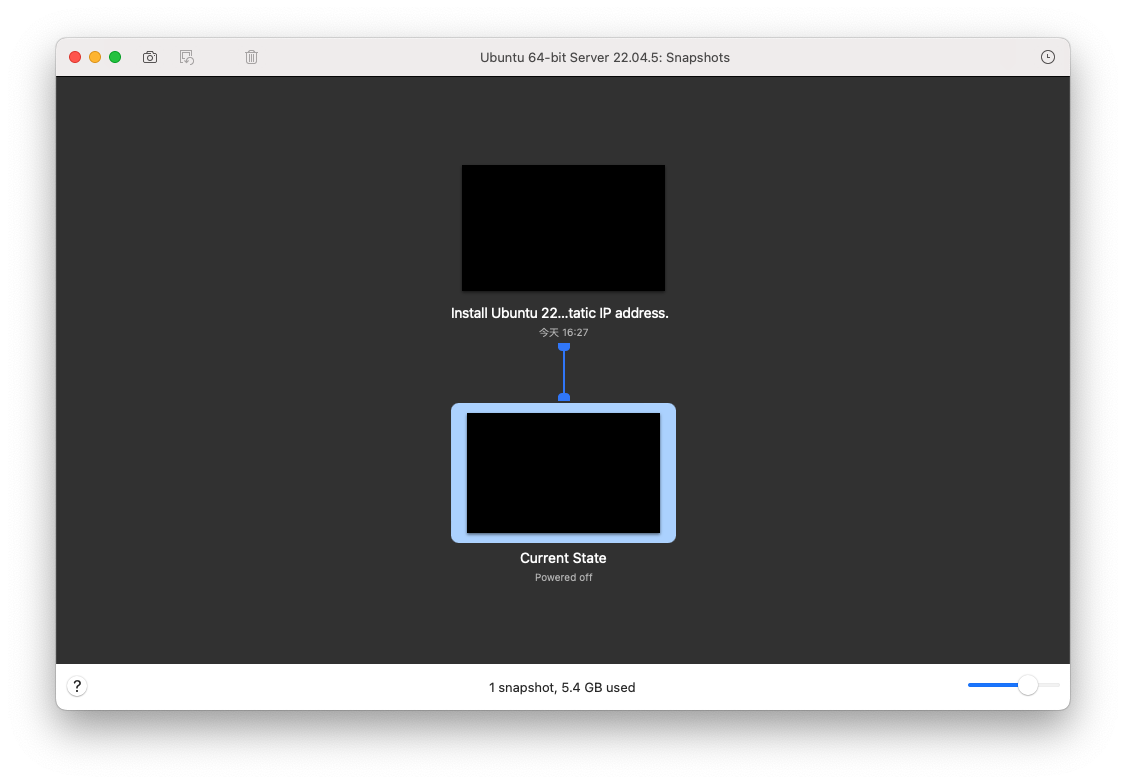
Give the snapshot a name, for example "纯净初始状态".
In the future, if you mess up the system, you can restore it to a clean, freshly installed state in one minute, sparing you the pain of reinstalling the system.
Summary
Through Internet Sharing (NAT) + Netplan Fixed Static IP solution, we have implemented:
✅ Mac disk space friendly (10GB dynamic disk)
✅ Ubuntu can access the internet (install software, pull images)
✅ Fixed private IP (not affected by the network environment)
✅ Secure isolation (inaccessible to other devices)
✅ Can be done at any time
ssh [email protected](Please replace with your actual IP)
Reference materials
Summary of corrections
| Location | Before correction | After correction |
|---|---|---|
| 3.1 Principle Description | vmnet8 | bridgexxx, and add an explanation of the naming differences |
| 3.2 View Network Segment | ifconfig vmnet8 | `ifconfig |
| 3.2 Example IP | 192.168.100.x | 192.168.98.x(Based on the actual environment) |
| 3.2 Confirmation Method | None | Add an explanation of "how to determine which bridge to use". |
| Q6 | None | Add a new FAQ specifically to answer bridge confirmation questions. |
| Full text | Fusion/Workstation not distinguished | Add a comparison table to clarify the specifics under macOS. |
Now this article is completely accurate for VMware Fusion users! 🚀