
English
Lock the screen via Hot Corners on macOS Ventura
Overview
In Windows systems, you can use Win + L Use shortcut keys to quickly lock the screen. Of course, in macOS, it can also be done through ⌃ Control + ⌘ Command + Q Quickly lock the screen, but macOS has a better way to achieve this screen-locking need; however, in macOS Ventura, the Hot Corners settings are really not easy to find!
Set a hot corner to lock the screen
Step 1: Open system settings
Click the (Apple icon) in the top-left corner of the screen -> “System Settings”
Step 2: Open the firing angle setting pop-up window
at System Settings Search on the left 触发角
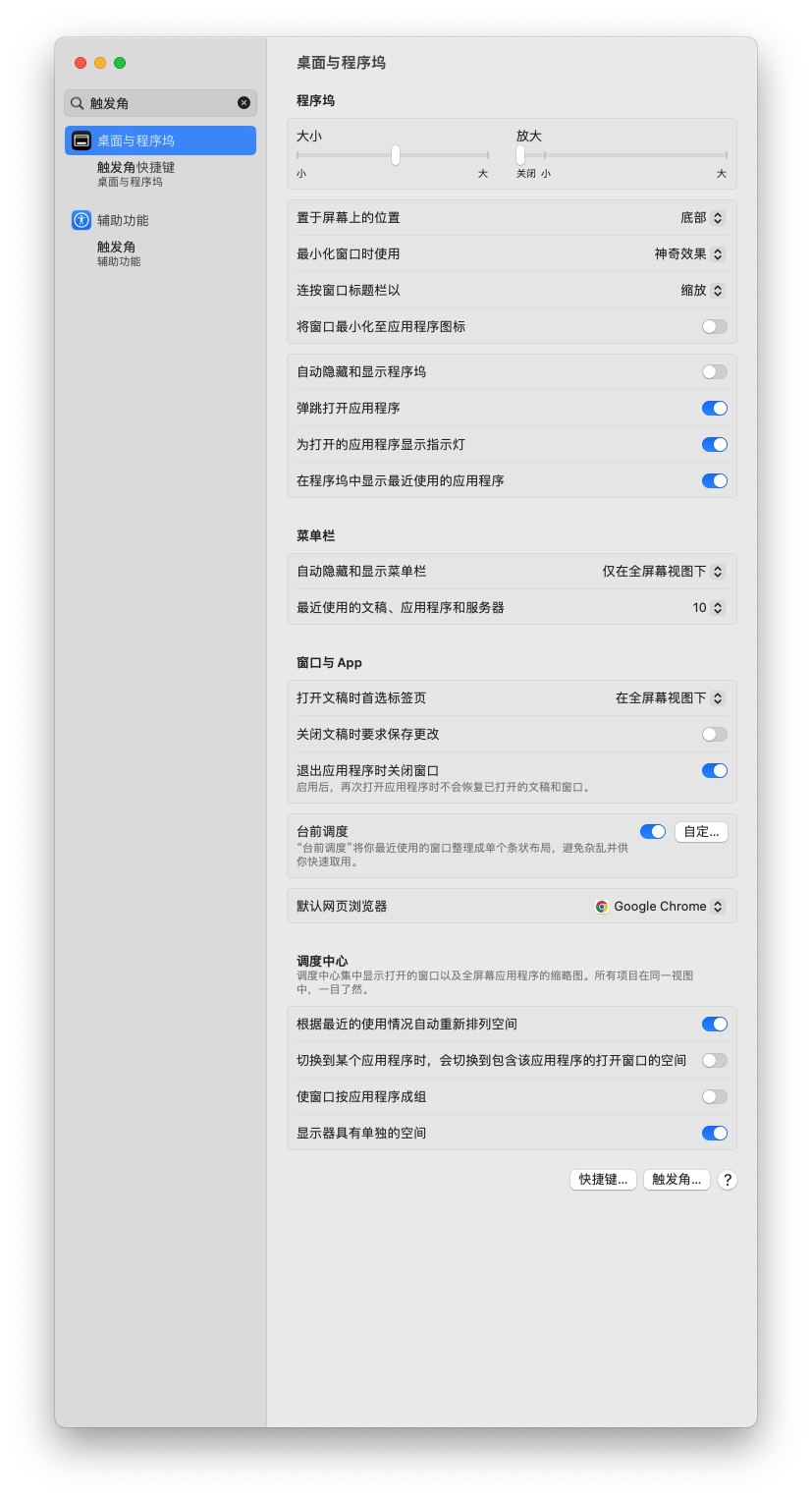
It can be accessed in two ways.触发角 Set pop-up window
Click
桌面与程序坞->触发角快捷键Click
桌面与程序坞in the lower right corner of the page触发角
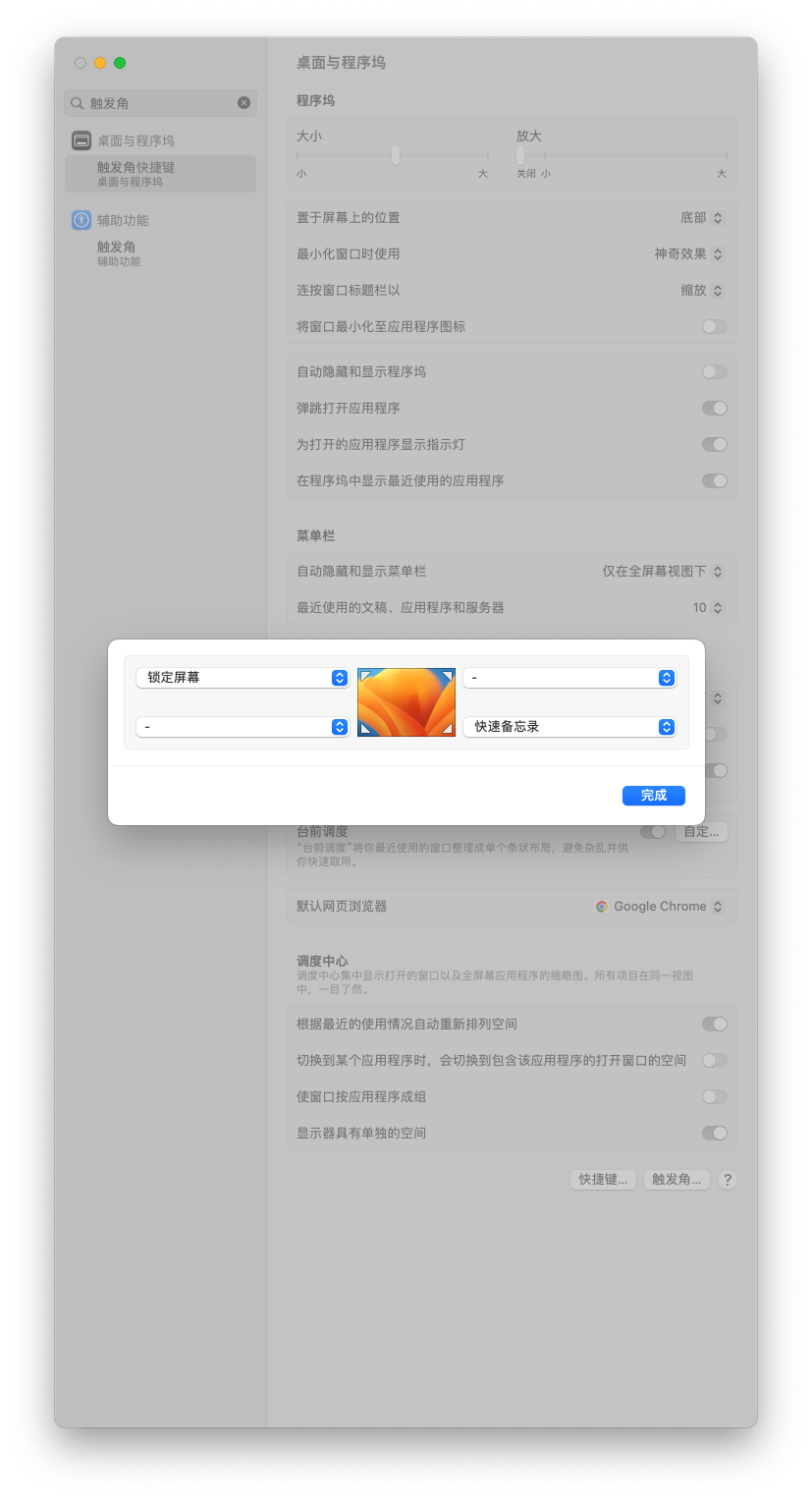
Step 3: Set the lock screen operation to execute when a specific corner is triggered.
Select a corner you want to set from the drop-down menu.锁定屏幕 That will do!