
English
Install the Kubernetes Dashboard control panel

Preface
Installing Dashboard in a Kubernetes cluster is a very common requirement. This document will guide you through installing Kubernetes Dashboard in various Kubernetes environments, including Docker Desktop, Minikube, kubeadm-deployed clusters, etc.
Note: This document is based on Dashboard v2.7.0. Please see Kubernetes Dashboard Release Page to confirm the latest stable version.
Step 1: Preparation
1.1 Pull the image (optional)
The images required by Dashboard are usually pulled automatically during deployment. However, if your network environment is poor, or if you want to prepare the images in advance, you can pull them manually.
shell
docker pull kubernetesui/dashboard:v2.7.0
docker pull kubernetesui/metrics-scraper:v1.0.8
shell
ctr image pull docker.io/kubernetesui/dashboard:v2.7.0
ctr image pull docker.io/kubernetesui/metrics-scraper:v1.0.8
shell
nerdctl pull kubernetesui/dashboard:v2.7.0
nerdctl pull kubernetesui/metrics-scraper:v1.0.8
Tip
Docker: Applicable to Docker Desktop and clusters that use Docker as the runtime
containerd: Applicable to Kubernetes 1.24+ clusters that use containerd by default (e.g., deployed with kubeadm)
nerdctl: Docker-compatible command-line tool for containerd
💡 Note
When the containerd terminal tool ctr pulls images, it may fail due to network environment issues. In this case, you can copy the proxy address provided by a proxy tool on a machine that can access the international Internet to that server to achieve the purpose of accessing the international Internet. Without further ado, you know what I mean.~
1. Extract dashboard
bash
# Replace <your-proxy-ip> with the actual proxy address
HTTP_PROXY=http://<your-proxy-ip>:7890 \
HTTPS_PROXY=http://<your-proxy-ip>:7890 \
NO_PROXY=localhost,127.0.0.1,.local,10.0.0.0/8,192.168.0.0/16,172.16.0.0/12 \
ctr image pull docker.io/kubernetesui/dashboard:v2.7.0
2. Extract metrics-scraper
bash
# Replace <your-proxy-ip> with the actual proxy address
HTTP_PROXY=http://<your-proxy-ip>:7890 \
HTTPS_PROXY=http://<your-proxy-ip>:7890 \
NO_PROXY=localhost,127.0.0.1,.local,10.0.0.0/8,192.168.0.0/16,172.16.0.0/12 \
ctr image pull docker.io/kubernetesui/metrics-scraper:v1.0.8
Configure a proxy for kubelet (optional)
If you want Pods to automatically pull images through a proxy during scheduling, you need to configure a proxy for kubelet. In Each node Execute on:
bash
sudo mkdir -p /etc/systemd/system/kubelet.service.d
sudo tee /etc/systemd/system/kubelet.service.d/http-proxy.conf > /dev/null <<EOF
[Service]
Environment="HTTP_PROXY=http://<your-proxy-ip>:7890"
Environment="HTTPS_PROXY=http://<your-proxy-ip>:7890"
Environment="NO_PROXY=localhost,127.0.0.1,.local,10.0.0.0/8,192.168.0.0/16,172.16.0.0/12"
EOF

sudo systemctl daemon-reload
sudo systemctl restart kubelet
⚠️ Special Reminder: If the proxy IP is automatically assigned via DHCP, the proxy IP may change after the terminal device restarts or reconnects to the network, causing kubelet to be unable to pull images normally. It is recommended to use a proxy node with a static IP, or promptly delete the kubelet proxy configuration after use.
Step 2: Install Kubernetes Dashboard
The Kubernetes Dashboard project officially provides a standardized installation YAML manifest file, which we can apply directly. You can through kubectl apply -f Apply online files, and resource definition files can also be downloaded locally for storage and deployment.
2.1 Download Kubernetes Dashboard resource definitions
Open Terminal and run the following command:
shell
wget https://raw.githubusercontent.com/kubernetes/dashboard/v2.7.0/aio/deploy/recommended.yaml -O kubernetes-dashboard.yamlIf wget Unavailable, but can also be used.curl:
shell
curl -L https://raw.githubusercontent.com/kubernetes/dashboard/v2.7.0/aio/deploy/recommended.yaml -o kubernetes-dashboard.yamlNote
Please be sure to check.Kubernetes Dashboard release page to confirm the latest stable version. In the above URL,v2.7.0 It may change over time. If you encounter any issues, please replace it with the latest version number.
2.2 Deploy Dashboard to Kubernetes Environment
shell
kubectl apply -f kubernetes-dashboard.yamlThe specific output log output is similar to the following:
namespace/kubernetes-dashboard created
serviceaccount/kubernetes-dashboard created
service/kubernetes-dashboard created
secret/kubernetes-dashboard-certs created
secret/kubernetes-dashboard-csrf created
secret/kubernetes-dashboard-key-holder created
configmap/kubernetes-dashboard-settings created
role.rbac.authorization.k8s.io/kubernetes-dashboard created
clusterrole.rbac.authorization.k8s.io/kubernetes-dashboard created
rolebinding.rbac.authorization.k8s.io/kubernetes-dashboard created
clusterrolebinding.rbac.authorization.k8s.io/kubernetes-dashboard created
deployment.apps/kubernetes-dashboard created
service/dashboard-metrics-scraper created
deployment.apps/dashboard-metrics-scraper created
2.3 Verify the Installation
Check whether the Dashboard Pod is running. It will be created in kubernetes-dashboard in the namespace.
bash
kubectl get pods -n kubernetes-dashboardWait for the Pod status to become Running The output should be similar to:
NAME                                         READY   STATUS    RESTARTS   AGE
dashboard-metrics-scraper-5f44d5f6c6-9k5pj   1/1     Running   0          60s
kubernetes-dashboard-678bc9f755-2nx9r        1/1     Running   0          60s
Step 3: Create permission to access the Dashboard
The Dashboard installed by default has minimal RBAC (Role-Based Access Control) permissions. We need to create a Service Account with appropriate permissions to log in and access cluster resources.
3.1 Write ServiceAccount and ClusterRoleBinding resource definition files
yaml
apiVersion: v1
kind: ServiceAccount
metadata:
  name: admin-user
  namespace: kubernetes-dashboard
---
apiVersion: rbac.authorization.k8s.io/v1
kind: ClusterRoleBinding
metadata:
  name: admin-user
roleRef:
  apiGroup: rbac.authorization.k8s.io
  kind: ClusterRole
  name: cluster-admin
subjects:
- kind: ServiceAccount
  name: admin-user
  namespace: kubernetes-dashboard
Warning
Create one named admin-user of the Service Account and bind it to cluster-admin Role (with the highest privileges).Note: In production environments, more granular permissions should be granted.
3.2 Deploy ServiceAccount and ClusterRoleBinding resource definitions to the Kubernetes environment
shell
kubectl apply -f dashboard-adminuser.yamlStep 4: Access Dashboard
There are several ways to access the Dashboard; the simplest is through kubectl proxy.
Method 1: Use kubectl proxy (recommended, secure)
- Start Proxy: This command creates a secure proxy channel between your local machine (127.0.0.1) and the Kubernetes API Server.
bash
kubectl proxyAfter the proxy starts, it will output something similar to Starting to serve on 127.0.0.1:8001 information. Keep this terminal window running.
- Access Dashboard: Now, you can access the following URL in your browser:
http://localhost:8001/api/v1/namespaces/kubernetes-dashboard/services/https:kubernetes-dashboard:/proxy/The browser will open the Dashboard login page.
Method 2: Use NodePort (not recommended for production, but sometimes more direct)
- Modify Dashboard service type: The default Dashboard Service is
ClusterIPtype, can only be accessed within the cluster. We can change it toNodePort.
bash
kubectl patch svc kubernetes-dashboard -n kubernetes-dashboard -p '{"spec": {"type": "NodePort"}}'- Find the assigned port:
bash
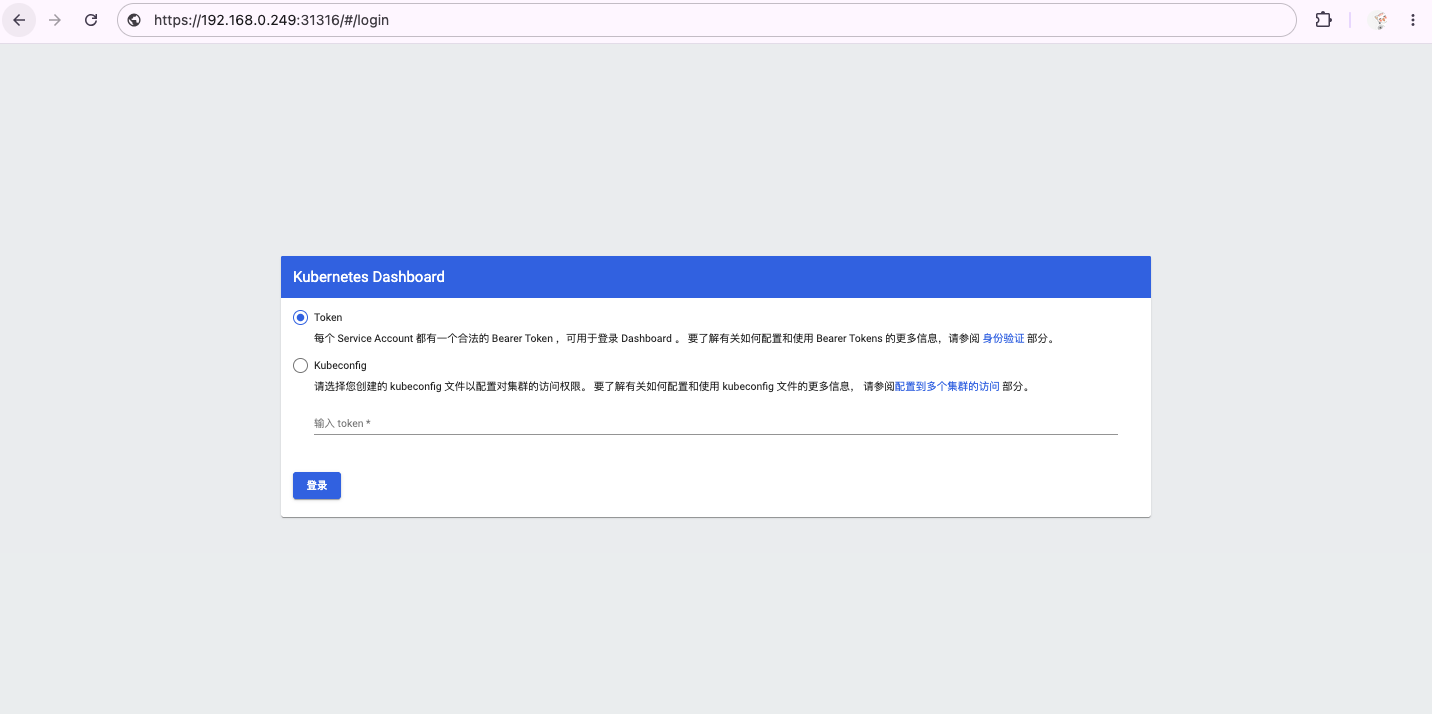
kubectl get svc -n kubernetes-dashboardIn the output, find kubernetes-dashboard service, you will see PORT(S) Similar to the listed 443:3xxxx/TCP. Here's 3xxxx It is the port number mapped to your local host (NodePort).
- Access Dashboard: Visit in the browser:
https://<Any Node IP>:<NodePort>Reminder
Important Notice Due to a certificate issue, the browser will display a security warning. You need to click Advanced -> Proceed to continue.
Method 3: Using Port Forward (Quick Debugging)
If you just want to quickly test, you can use Port Forward:
bash
kubectl port-forward -n kubernetes-dashboard service/kubernetes-dashboard 8443:443Then visit:https://localhost:8443
Step 5: Obtain a token (Token) for login
Regardless of which access method is used, you will see that a Token or Kubeconfig file to log in. We use the previously created admin-user's Token.
5.1 Obtain Login Token
Run the following command to obtain admin-user Token of:
shell
kubectl -n kubernetes-dashboard create token admin-usershell
kubectl -n kubernetes-dashboard get secret $(kubectl -n kubernetes-dashboard get sa/admin-user -o jsonpath="{.secrets[0].name}") -o go-template="{{.data.token | base64decode}}"This command will directly output a very long new token.Copy the entire token string.
Note
Kubernetes 1.24+:
create tokenThe command generates a short-lived token with an expiration time (1 hour by default).Kubernetes 1.23 and below: The token extracted from the Secret is long-lived.
If you need to create a long-term valid token, you can manually create a Secret, or use
--durationParameter (such as--duration=8760hindicates 1 year)
5.2 Log in to Dashboard
On the login screen, select Token.
Paste the token you just copied into the input box.
Click "Login".
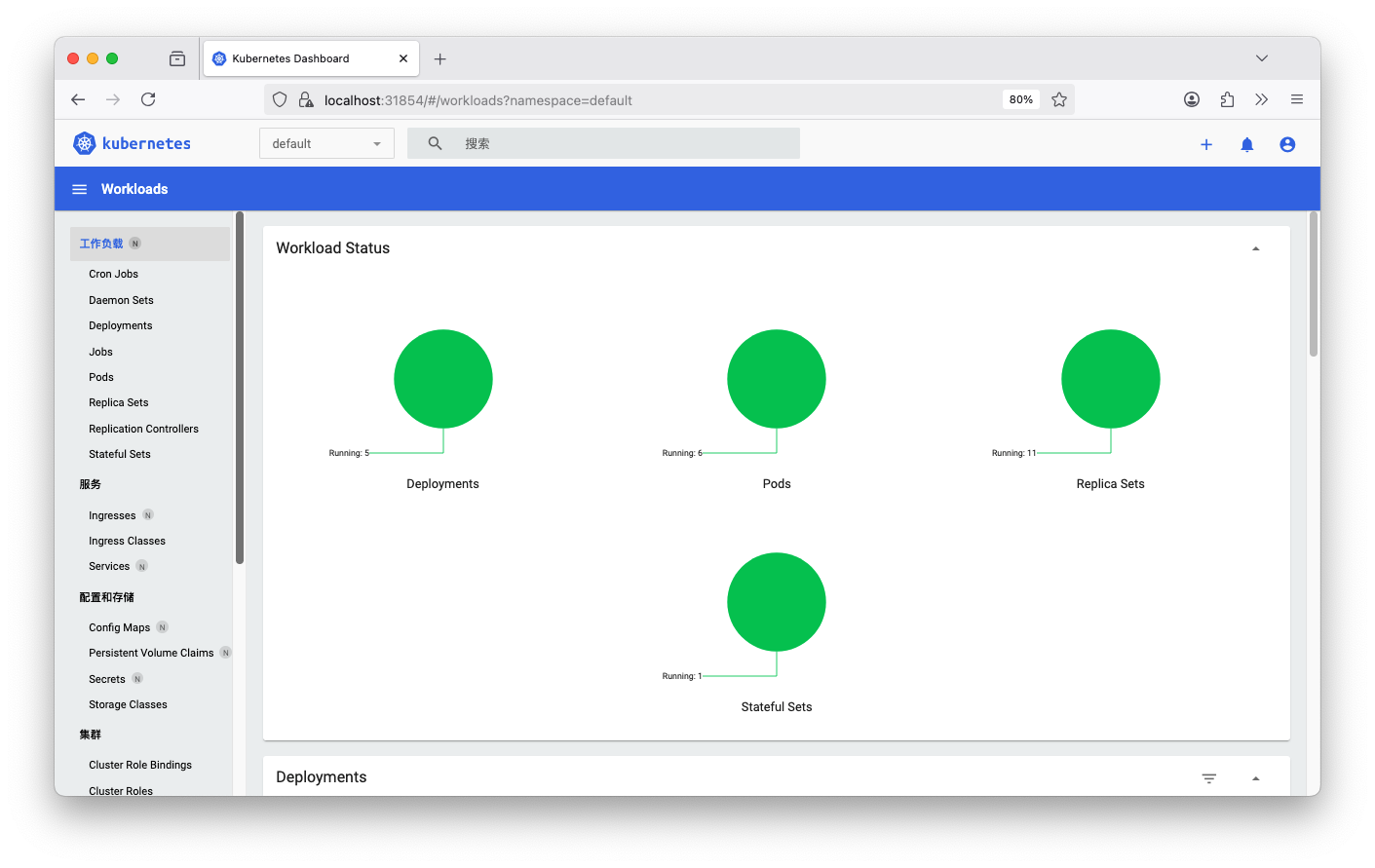
After a successful login, you can see the Kubernetes Dashboard management interface, where you can view and manage all resources in your cluster.
Step 6: Follow-up configuration recommendations (optional)
6.1 Set Resource Limits
In production environments, it is recommended to set resource limits for Dashboard Pods. You can modify kubernetes-dashboard.yaml File, add in the deployment:
yaml
resources:
  requests:
    memory: "256Mi"
    cpu: "100m"
  limits:
    memory: "512Mi"
    cpu: "200m"
6.2 Enable HTTPS and Ingress
If you need to access the Dashboard via a domain name, it is recommended to configure an Ingress and enable HTTPS:
yaml
apiVersion: networking.k8s.io/v1
kind: Ingress
metadata:
  name: kubernetes-dashboard
  namespace: kubernetes-dashboard
spec:
  tls:
  - hosts:
    - dashboard.example.com
    secretName: dashboard-tls
  rules:
  - host: dashboard.example.com
    http:
      paths:
      - path: /
        pathType: Prefix
        backend:
          service:
            name: kubernetes-dashboard
            port:
              number: 443
Troubleshooting
ImagePullBackOff
Ensure the network connection is normal and that it can be from k8s.gcr.io(or its mirror repository) to pull images. Users in China may encounter network issues and can consider using a mirror source.
Solution:
Modify the image address in the YAML file to a domestic mirror source.
Or manually pull the image to the local node.
Unable to log in
Confirm you copied it.entire Token, it is very long; make sure no characters at the beginning or end are missed.
Check whether the Token has expired (Kubernetes 1.24+ defaults to 1 hour); it can be regenerated.
Confirm that the ServiceAccount and ClusterRoleBinding have been created correctly
Permission error
Ensure that you have correctly created ClusterRoleBinding and will admin-user bound to cluster-admin Role:
bash
kubectl get clusterrolebinding admin-user -o yamlThe browser cannot access
Confirm
kubectl proxyRunningCheck whether the firewall allows the relevant ports.
If using NodePort, confirm that the node IP and port are correct.
The Pod has been stuck in the Pending state.
Check whether node resources are sufficient:
bash
kubectl describe pod -n kubernetes-dashboard
kubectl top nodes
Uninstall Dashboard
bash
# Delete Dashboard resource
kubectl delete -f kubernetes-dashboard.yaml

# Delete administrator account
kubectl delete -f dashboard-adminuser.yaml

# Delete namespace (optional)
kubectl delete namespace kubernetes-dashboard
Reference link
Now, you have successfully installed and run the Kubernetes Dashboard in your Kubernetes cluster! 🎉
Attachment
1. kubernetes-dashboard.yaml
Click to view detailed file contents
If your network environment cannot access GitHub, you can use the kubernetes-dashboard.yaml provided in the blog post. This file has exactly the same content as the file downloaded with wget above!
yaml
# Copyright 2017 The Kubernetes Authors.
#
# Licensed under the Apache License, Version 2.0 (the "License");
# you may not use this file except in compliance with the License.
# You may obtain a copy of the License at
#
#     http://www.apache.org/licenses/LICENSE-2.0
#
# Unless required by applicable law or agreed to in writing, software
# distributed under the License is distributed on an "AS IS" BASIS,
# WITHOUT WARRANTIES OR CONDITIONS OF ANY KIND, either express or implied.
# See the License for the specific language governing permissions and
# limitations under the License.

apiVersion: v1
kind: Namespace
metadata:
  name: kubernetes-dashboard

---

apiVersion: v1
kind: ServiceAccount
metadata:
  labels:
    k8s-app: kubernetes-dashboard
  name: kubernetes-dashboard
  namespace: kubernetes-dashboard

---

kind: Service
apiVersion: v1
metadata:
  labels:
    k8s-app: kubernetes-dashboard
  name: kubernetes-dashboard
  namespace: kubernetes-dashboard
spec:
  ports:
    - port: 443
      targetPort: 8443
  selector:
    k8s-app: kubernetes-dashboard

---

apiVersion: v1
kind: Secret
metadata:
  labels:
    k8s-app: kubernetes-dashboard
  name: kubernetes-dashboard-certs
  namespace: kubernetes-dashboard
type: Opaque

---

apiVersion: v1
kind: Secret
metadata:
  labels:
    k8s-app: kubernetes-dashboard
  name: kubernetes-dashboard-csrf
  namespace: kubernetes-dashboard
type: Opaque
data:
  csrf: ""

---

apiVersion: v1
kind: Secret
metadata:
  labels:
    k8s-app: kubernetes-dashboard
  name: kubernetes-dashboard-key-holder
  namespace: kubernetes-dashboard
type: Opaque

---

kind: ConfigMap
apiVersion: v1
metadata:
  labels:
    k8s-app: kubernetes-dashboard
  name: kubernetes-dashboard-settings
  namespace: kubernetes-dashboard

---

kind: Role
apiVersion: rbac.authorization.k8s.io/v1
metadata:
  labels:
    k8s-app: kubernetes-dashboard
  name: kubernetes-dashboard
  namespace: kubernetes-dashboard
rules:
  # Allow Dashboard to get, update and delete Dashboard exclusive secrets.
  - apiGroups: [""]
    resources: ["secrets"]
    resourceNames: ["kubernetes-dashboard-key-holder", "kubernetes-dashboard-certs", "kubernetes-dashboard-csrf"]
    verbs: ["get", "update", "delete"]
    # Allow Dashboard to get and update 'kubernetes-dashboard-settings' config map.
  - apiGroups: [""]
    resources: ["configmaps"]
    resourceNames: ["kubernetes-dashboard-settings"]
    verbs: ["get", "update"]
    # Allow Dashboard to get metrics.
  - apiGroups: [""]
    resources: ["services"]
    resourceNames: ["heapster", "dashboard-metrics-scraper"]
    verbs: ["proxy"]
  - apiGroups: [""]
    resources: ["services/proxy"]
    resourceNames: ["heapster", "http:heapster:", "https:heapster:", "dashboard-metrics-scraper", "http:dashboard-metrics-scraper"]
    verbs: ["get"]

---

kind: ClusterRole
apiVersion: rbac.authorization.k8s.io/v1
metadata:
  labels:
    k8s-app: kubernetes-dashboard
  name: kubernetes-dashboard
rules:
  # Allow Metrics Scraper to get metrics from the Metrics server
  - apiGroups: ["metrics.k8s.io"]
    resources: ["pods", "nodes"]
    verbs: ["get", "list", "watch"]

---

apiVersion: rbac.authorization.k8s.io/v1
kind: RoleBinding
metadata:
  labels:
    k8s-app: kubernetes-dashboard
  name: kubernetes-dashboard
  namespace: kubernetes-dashboard
roleRef:
  apiGroup: rbac.authorization.k8s.io
  kind: Role
  name: kubernetes-dashboard
subjects:
  - kind: ServiceAccount
    name: kubernetes-dashboard
    namespace: kubernetes-dashboard

---

apiVersion: rbac.authorization.k8s.io/v1
kind: ClusterRoleBinding
metadata:
  name: kubernetes-dashboard
roleRef:
  apiGroup: rbac.authorization.k8s.io
  kind: ClusterRole
  name: kubernetes-dashboard
subjects:
  - kind: ServiceAccount
    name: kubernetes-dashboard
    namespace: kubernetes-dashboard

---

kind: Deployment
apiVersion: apps/v1
metadata:
  labels:
    k8s-app: kubernetes-dashboard
  name: kubernetes-dashboard
  namespace: kubernetes-dashboard
spec:
  replicas: 1
  revisionHistoryLimit: 10
  selector:
    matchLabels:
      k8s-app: kubernetes-dashboard
  template:
    metadata:
      labels:
        k8s-app: kubernetes-dashboard
    spec:
      securityContext:
        seccompProfile:
          type: RuntimeDefault
      containers:
        - name: kubernetes-dashboard
          image: kubernetesui/dashboard:v2.7.0
          imagePullPolicy: Always
          ports:
            - containerPort: 8443
              protocol: TCP
          args:
            - --auto-generate-certificates
            - --namespace=kubernetes-dashboard
            # Uncomment the following line to manually specify Kubernetes API server Host
            # If not specified, Dashboard will attempt to auto discover the API server and connect
            # to it. Uncomment only if the default does not work.
            # - --apiserver-host=http://my-address:port
          volumeMounts:
            - name: kubernetes-dashboard-certs
              mountPath: /certs
              # Create on-disk volume to store exec logs
            - mountPath: /tmp
              name: tmp-volume
          livenessProbe:
            httpGet:
              scheme: HTTPS
              path: /
              port: 8443
            initialDelaySeconds: 30
            timeoutSeconds: 30
          securityContext:
            allowPrivilegeEscalation: false
            readOnlyRootFilesystem: true
            runAsUser: 1001
            runAsGroup: 2001
      volumes:
        - name: kubernetes-dashboard-certs
          secret:
            secretName: kubernetes-dashboard-certs
        - name: tmp-volume
          emptyDir: {}
      serviceAccountName: kubernetes-dashboard
      nodeSelector:
        "kubernetes.io/os": linux
      # Comment the following tolerations if Dashboard must not be deployed on master
      tolerations:
        - key: node-role.kubernetes.io/master
          effect: NoSchedule

---

kind: Service
apiVersion: v1
metadata:
  labels:
    k8s-app: dashboard-metrics-scraper
  name: dashboard-metrics-scraper
  namespace: kubernetes-dashboard
spec:
  ports:
    - port: 8000
      targetPort: 8000
  selector:
    k8s-app: dashboard-metrics-scraper

---

kind: Deployment
apiVersion: apps/v1
metadata:
  labels:
    k8s-app: dashboard-metrics-scraper
  name: dashboard-metrics-scraper
  namespace: kubernetes-dashboard
spec:
  replicas: 1
  revisionHistoryLimit: 10
  selector:
    matchLabels:
      k8s-app: dashboard-metrics-scraper
  template:
    metadata:
      labels:
        k8s-app: dashboard-metrics-scraper
    spec:
      securityContext:
        seccompProfile:
          type: RuntimeDefault
      containers:
        - name: dashboard-metrics-scraper
          image: kubernetesui/metrics-scraper:v1.0.8
          ports:
            - containerPort: 8000
              protocol: TCP
          livenessProbe:
            httpGet:
              scheme: HTTP
              path: /
              port: 8000
            initialDelaySeconds: 30
            timeoutSeconds: 30
          volumeMounts:
          - mountPath: /tmp
            name: tmp-volume
          securityContext:
            allowPrivilegeEscalation: false
            readOnlyRootFilesystem: true
            runAsUser: 1001
            runAsGroup: 2001
      serviceAccountName: kubernetes-dashboard
      nodeSelector:
        "kubernetes.io/os": linux
      # Comment the following tolerations if Dashboard must not be deployed on master
      tolerations:
        - key: node-role.kubernetes.io/master
          effect: NoSchedule
      volumes:
        - name: tmp-volume
          emptyDir: {}
2. dashboard-adminuser.yaml
Click to view detailed file contents
This file and 3.1 Write ServiceAccount and ClusterRoleBinding resource definition files The file described in the section is consistent!
yaml
apiVersion: v1
kind: ServiceAccount
metadata:
  name: admin-user
  namespace: kubernetes-dashboard
---
apiVersion: rbac.authorization.k8s.io/v1
kind: ClusterRoleBinding
metadata:
  name: admin-user
roleRef:
  apiGroup: rbac.authorization.k8s.io
  kind: ClusterRole
  name: cluster-admin
subjects:
- kind: ServiceAccount
  name: admin-user
  namespace: kubernetes-dashboard